
In today’s fast-paced work environment, projects can quickly spiral into chaos. Tasks get buried in chats, deadlines pile up without warning, and team members lose track of who’s handling what. Trello project management offers a clear and visually intuitive way to escape that mess. It works like a digital whiteboard where every task, deadline, and responsibility is laid out in front of you, making your entire workflow easier to understand at a glance.
With Trello, teams can set up boards, lists, and cards to map out their projects in a step-by-step manner. They can assign tasks, track progress, share updates, and collaborate in real time without confusion. Instead of searching for information in multiple places, everything stays organised in one simple, visual system.
This article will walk you through Trello’s core features, practical tools, and smart usage strategies so you can transform project disorder into a clear, efficient, and productive workflow.
Understanding Trello and How It Helps You Work Better
At its core, Trello project management is a visual workspace that simplifies how you manage tasks and projects. Instead of scattered notes or long email threads, Trello organises work using Boards, Lists, and Cards, where boards act as project hubs, lists show progress stages, and cards store tasks, files, and deadlines. Among Project Management Apps, Trello stands out for its simplicity and visual clarity, making it easy for teams to start managing work quickly.
Trusted by 50+ million users worldwide and used by millions of teams, Trello handles billions of cards every year, proving its reliability at scale. This setup gives instant clarity so teams can quickly see what’s pending, in progress, or completed, making collaboration smooth and easy from day one.
Trello’s effectiveness comes down to three core strengths:
- Simplicity – Easy to learn and use
- Flexibility – Adapts to different workflows and project types
- Visibility – Real-time updates keep everyone aligned
Whether you’re planning work, organising tasks, or managing team projects, Trello keeps everything structured, transparent, and easy to track in one intuitive space.
Key Features That Make Trello a Powerful Project Tool
Trello Project Management may look simple, but its core features make it flexible enough for managing everything from daily tasks to complete team workflows. Its board-style system helps you visualise progress clearly, while cards and lists keep every detail organised in one place. With tens of millions of active users worldwide and widespread adoption by small teams and businesses, Trello has proven its reliability at scale.
Some key features that make Trello stand out include:
- Boards, lists, and cards that let you structure workflows visually and intuitively
- Card-level details, such as due dates, attachments, checklists, labels, and comments, to manage tasks thoroughly
- Built-in automation (Butler) to move cards, trigger actions, and send reminders automatically, reducing manual work
- Seamless integrations with tools like Slack, Google Drive, and Jira, making Trello easy to fit into existing workflows
- Real-time collaboration, ensuring teams always see updates instantly
Trello also benefits from a strong freemium model, with a steady conversion from free to paid plans as teams grow and need more automation, security, and advanced views. Among Free Online Project Management Tools, Trello stands out for its ease of use, clean interface, and flexibility. Its consistently high user ratings reflect how simple and effective it is, even though advanced reporting and time tracking are limited on lower plans.
Together, these features and usage metrics show why Trello remains more than a simple task manager; it’s a scalable, customisable project hub for teams that prioritise clarity and ease of collaboration.
How to Use Trello: Step-by-Step Guide
Getting started with Trello is easy because the platform works like a clean digital whiteboard where every task has a place. Here’s a simple step-by-step guide to help you use it effectively.
1. Create a New Board
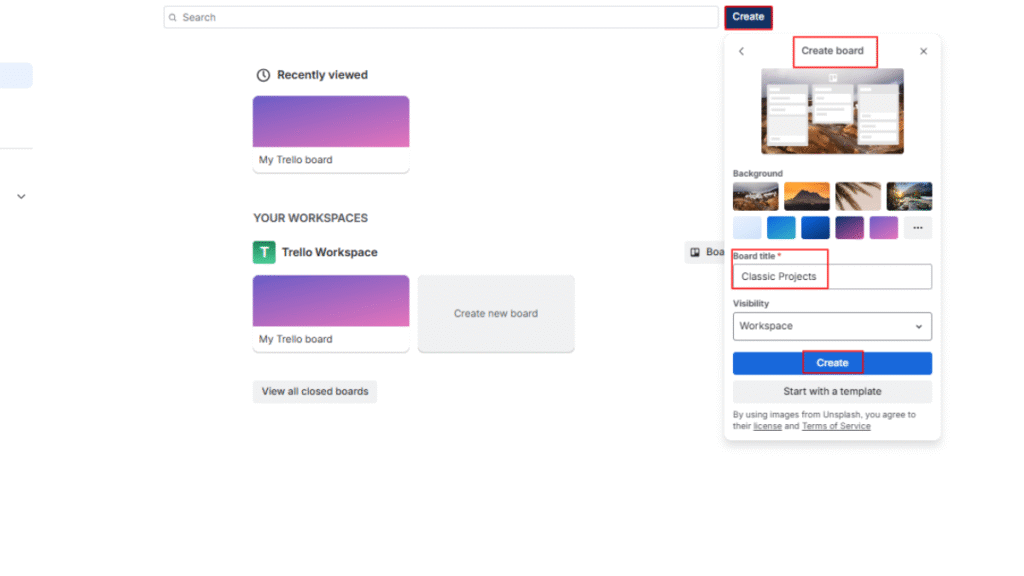
Go to: Trello → Home → Create → Create Board → Enter Board Name → Choose Workspace → Select Visibility → Create Board
This is the first step in setting up your project in Trello. Creating a board gives you a central workspace where you can organise tasks, track progress, and collaborate with your team. A clear board name helps you and your team quickly identify the project and understand what the board is for, keeping your workflow organised from the start.
Pro Tip: Keep board names short but specific. If your team handles multiple projects, add a tag like “Q1,” “Campaign,” or the client name to make boards instantly recognizable.
2. Add Lists to Structure Your Workflow
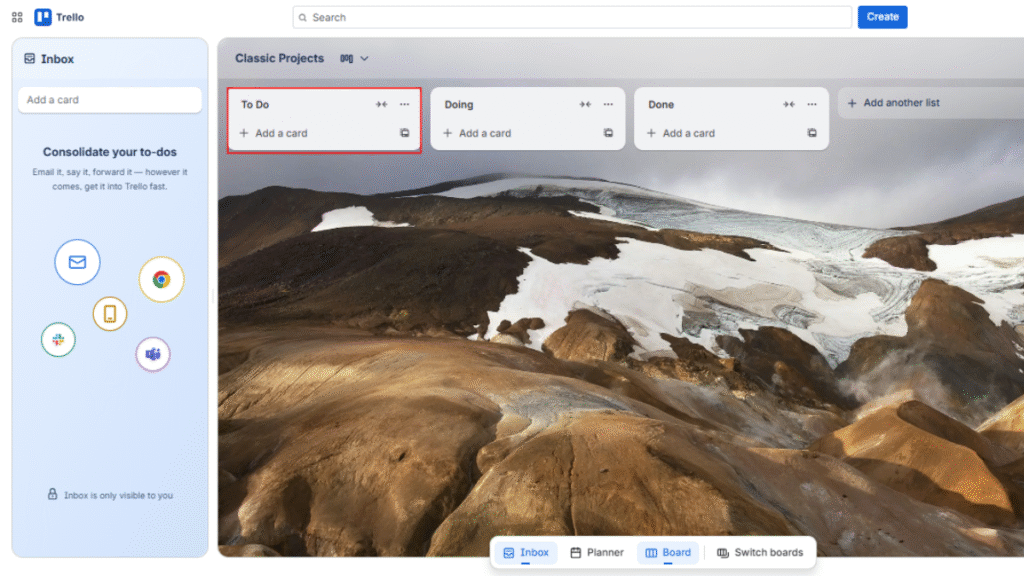
Go to: Trello → Open Board → Add a List → Enter List Name → Add More Lists → Drag Cards Between Lists
Lists represent the stages of your workflow and help you move tasks through a clear process. Instead of bullet points, think of lists as steps that guide work from start to finish. A typical setup includes To Do → In Progress → Review → Done, which makes it easy to see where every task stands at a glance. By dragging cards between lists, you create a smooth, visual flow that keeps your team aligned and organised.
Pro Tip: Don’t overload your board with too many lists. Stick to 4–6 core stages so your workflow stays clean, simple, and easy to follow at a glance.
3. Create Cards for Individual Tasks
Go to: Trello → Open Board → Open List → Click “Add a Card” → Enter Card Name → Click Card → Add Description / Checklist / Due Date / Attachments / Members / Comments
In Trello Project Management, a card represents a single task, idea, or action item. Each card can be filled with essential details like descriptions, checklists, due dates, attachments, and team comments. As you add these elements, the card becomes a complete, actionable unit that keeps everything related to that task in one place. Assigning members clarifies who is responsible, while comments and updates ensure smooth communication and better project flow.
Pro Tip: Start each card title with an action verb like “Design,” “Write,” or “Review.” This makes the task easier to understand and encourages quick action.
4. Assign Members and Set Deadlines
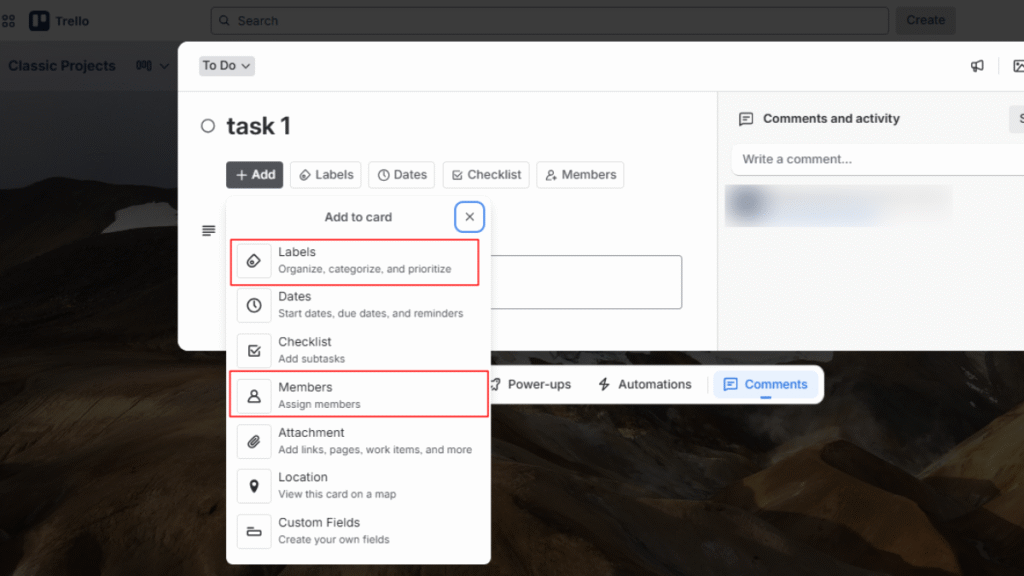
Go to: Trello → Open Board → Open Card → Click “Members” → Select Team Members → Click “Due Date” → Choose Date & Time → Save
Click “Members” inside a card to assign the right teammates to the task. This makes it clear who is responsible, reducing confusion and ensuring accountability. After assigning members, set a due date to establish a clear timeline. This helps the team understand when the task must be completed, keeping the project on track and moving smoothly toward its deadlines.
Pro Tip: Assign only one primary owner per card. You can mention others in comments, but having a single accountable person prevents confusion and missed deadlines.
5. Move Cards as Work Progresses
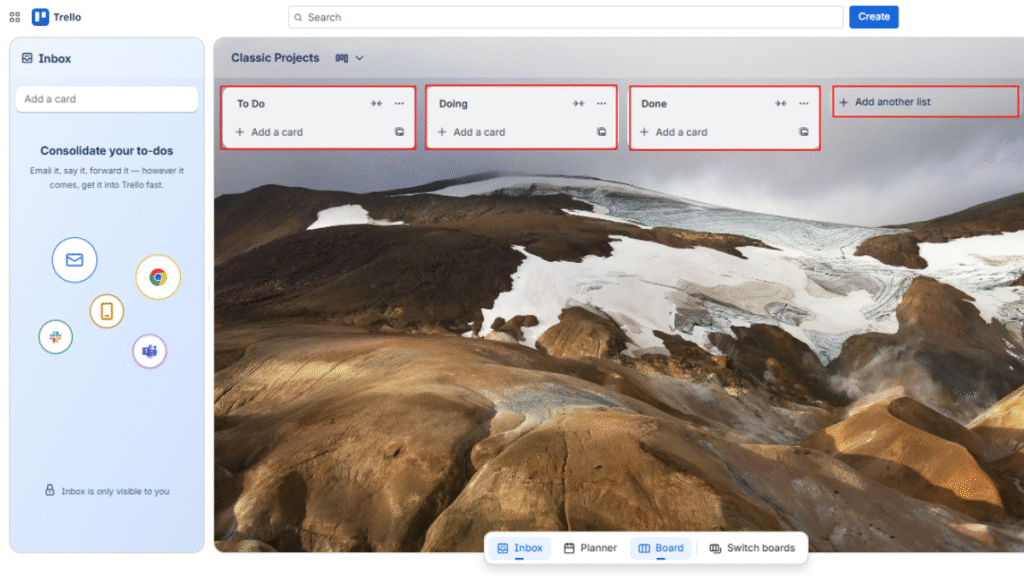
Go to: Trello → Open Board → Click & Drag Card → Move from One List to Another → Release Card in New List
Drag cards across your lists as progress is made. Moving a card from To Do → In Progress → Completed acts as a visual status update for your whole team. This simple action shows momentum and makes it easy to see what’s on track, what needs attention, and how the project is progressing. The board becomes a real-time project dashboard, keeping everyone aligned without the need for long meetings or constant check-ins.
Pro Tip: Avoid letting tasks sit too long in the same list. If a card hasn’t moved in a while, check in it’s often a sign of a blocker or missing information.
6. Use Labels for Quick Categorization
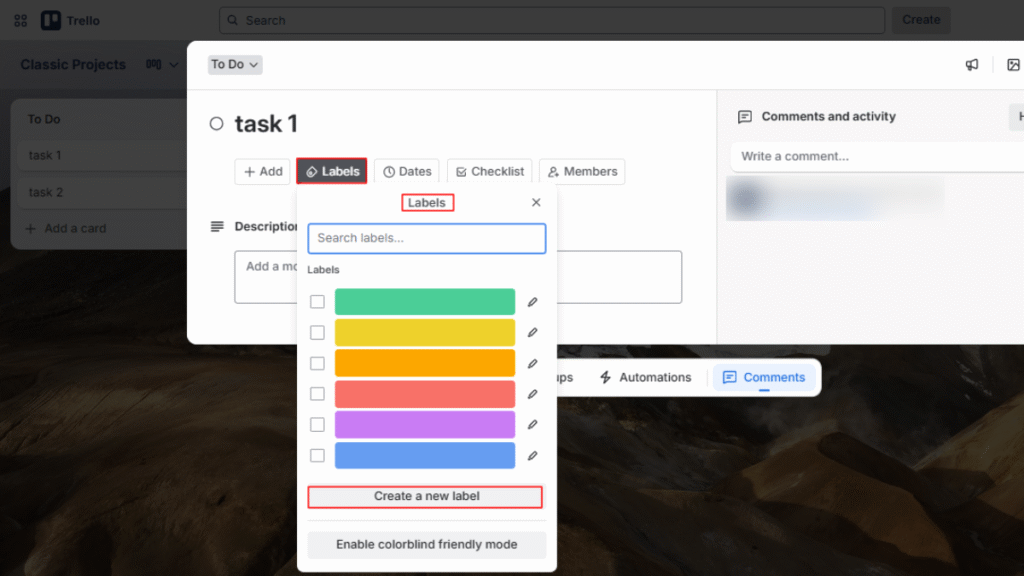
Go to: Trello → Open Board → Open Card → Click “Labels” → Select or Create Label → Apply to Card
Trello offers color-coded labels that help you categorize tasks by priority, type of work, or department. These labels act as quick visual cues, allowing you to identify important tasks instantly without digging into details. With just a glance, your board becomes easier to scan and understand, helping the entire team stay organised and aligned.
Pro Tip: Create a consistent label system across all your boards (e.g., red = urgent, yellow = review, blue = research). Consistency makes navigation faster for the whole team.
7. Add Power-Ups for Extra Functionality
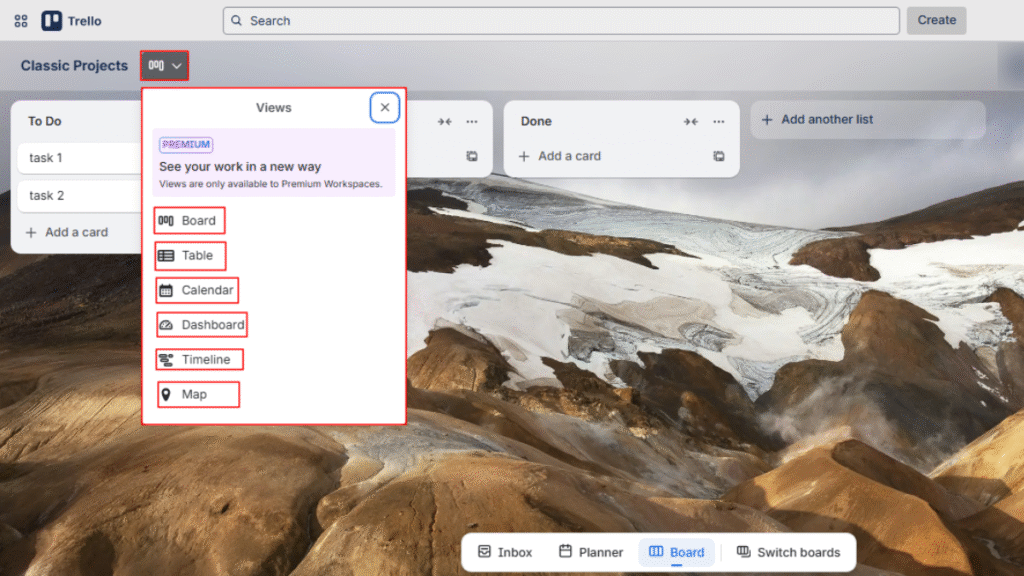
Go to: Trello → Open Board → Click “Show Menu” → Click “Power-Ups” → Search & Select Power-Up → Click “Add” → Enable the Power-Up
If you want more advanced features like Calendar view, Timeline view, or Butler automation, you can enable them through Trello’s Power-Ups. These tools give you deeper control over your workflow by helping you track deadlines visually, plan upcoming tasks more clearly, and automate repetitive steps. With the right Power-Ups activated, your Trello project management workflow becomes a more powerful and flexible workspace, supporting both simple tasks and complex projects effortlessly.
Pro Tip: Don’t activate every Power-Up you find. Choose only the ones that truly support your workflow so your board stays lightweight and easy to manage.
8. Review Activity and Keep Boards Updated
Go to: Trello → Open Board → Click “Show Menu” → Click “Activity” → Review Recent Updates
Then: Trello → Open Board → Click “…” (More) → Click “Archive” → Archive Old Cards / Lists
Make a habit of checking your recent activity so nothing slips through the cracks. Regularly clean up your lists, update task details, and archive old cards to keep your board organised and accurate. This simple routine ensures your Trello workspace stays clear, current, and genuinely useful for everyone on the team.
Pro Tip: Schedule a 5-minute cleanup at the end of each day. This small habit keeps your board accurate and prevents clutter from building up over time.
When Should You Choose Trello Over Other Tools?
Trello is ideal for teams that want clarity without the complexity of heavy project management tools. It works best for visual workflows where tasks move through clear stages, and progress is easy to track.
You should consider Trello Project Management Software if:
- You prefer a drag-and-drop system that shows progress at a glance
- Your team needs a tool that’s easy to learn and quick to set up
- You want a free tool with useful core features
- You need flexibility for content planning, marketing campaigns, light workflows, or personal productivity
However, Trello has limitations as projects grow. It lacks advanced reporting, time tracking, workload management, and task dependencies, making it less suitable for large or complex teams without paid upgrades. Agile Project Management Tools like Monday, Asana, and ClickUp stand out by offering multiple project views, automation, deeper analytics, and stronger team management. They are better suited for structured workflows and scaling organizations.
In short, Trello excels at simplicity, while Monday, Asana, and ClickUp perform better for complex and scalable project management needs.
Quick Comparison: Trello vs. Monday vs. Asana vs. ClickUp
| Aspect | Trello | Monday | Asana | ClickUp |
|---|---|---|---|---|
| Best for | Simple task tracking & visual boards | Structured workflows & team coordination | Complex task dependencies & collaboration | All-in-one project management & deep customisation |
| Interface | Kanban-only (very simple) | Multiple views (boards, timeline, calendar) | Multiple views (list, timeline, board) | Most views (Kanban, Gantt, mind maps, calendars) |
| Free Plan | Yes (good for basic) | Yes (very limited users/boards) | Yes (up to ~15 users) | Yes (unlimited users) |
| Paid starting price | ~$5/user/mo | ~$8–12/user/mo | ~$10.99/user/mo | ~$7/user/mo |
| Advanced Views | Limited (needs Power-Ups) | Widely available | Available | Very rich |
| Time Tracking | No native | Yes (higher-tier) | No (via integration) | Yes (native) |
| Task Dependencies | No | Yes | Yes | Yes |
| Automations | Basic | Strong | Strong | Very strong |
| Reporting & Analytics | Basic | Expanded with paid plans | Detailed | Advanced |
| Free Plan User Limit | Unlimited members, but 10 boards/workspace limit | Very limited free seats (~2) | Up to 15 users are free | Unlimited users free |
| Best Team Size | Solo to ~10-20 users (simple work) | ~10-100+ users (structured teams) | ~10-100+ users (cross-team workflows) | Solo to Enterprise (unlimited) |
Conclusion: Your Next Step in Trello Project Management Mastery
Project chaos doesn’t have to be your daily reality. When tasks pile up and teams lose clarity, progress slows down, and small issues quickly turn into bigger problems. This is exactly where Trello project management software steps in as a practical and visual solution that brings structure back into your workflow.
With its simple board system, clear task movement, and powerful features like labels, deadlines, and automation, Trello helps you stay organised without adding complexity. Among the Best Project Tracking Software, it adapts to any project, marketing, client work, product development, or even personal planning, making it a tool that grows with your needs.
Now that you understand how Trello works, why it matters, and how its features compare with other tools, your next step is simple: start using Trello today. Create your first board, map out your workflow, and feel the difference a well-structured system makes. When you take this small step, you set your entire project up for clarity, focus, and long-term success.
FAQs About Trello Project Management
A Trello board represents a project or workflow. Create a board, add lists (stages), and populate with cards (tasks). Invite teammates and set due dates.
Cards are tasks or items; lists are stages (e.g., To Do, In Progress, Done); boards group related lists and cards for a project.
Move cards across lists to represent updates in progress or status. Use labels, due dates, and checklists to granularly track progress.
Power-Ups add features (calendar, automation, Gantt/timeline, Jira import, Slack, etc.). They extend Trello’s functionality for your team.
Yes. Use Butler (built-in automation) to create rules, buttons, and scheduled workflows to auto-move cards, assign teammates, or add checklists.
Invite teammates to boards with appropriate permissions (comment, edit). For teams, use Workspace/Team visibility and board-level permissions.