Every designer starts with a blank canvas, eager to turn ideas into something real. Whether it’s a logo, an icon, or a creative illustration, the journey begins with choosing the right tools. One of the most powerful tools in a designer’s kit is software to create vector images. These programs let you draw shapes, lines, and curves that stay sharp no matter how big or small you make them.
As a result, vector graphics software has become incredibly popular for logos, web graphics, and print projects. With scalable vector design tools, you can resize your work without losing quality, which is perfect for branding and digital art. Additionally, professional vector drawing software offers features like anchor point editing, shape builders, and path tools for vectors, making your workflow smoother and more efficient. Therefore, whether you’re a beginner or a pro, using the right software to create vector images opens up endless possibilities for creativity and precision in your designs.
What are Vector Images?
Vector images are digital graphics created using mathematical formulas that define points, lines, curves, and shapes on a two-dimensional plane, ensuring they remain crisp and clear at any size. In contrast, raster images are made of pixels and lose quality when scaled, whereas vector images maintain their precision and clarity no matter how much they are enlarged or reduced. For this reason, vector images are ideal for logos, illustrations, and scalable designs. Typically, these graphics are saved in formats like SVG, AI, and EPS, each designed for specific applications in print and digital media.
Moreover, vector images use technologies based on geometric relationships and programming instructions to render images, allowing designers to edit individual elements like color, shape, and structure without affecting the overall quality. Consequently, this technology enables infinite scalability and supports features such as non-destructive editing, making vector graphics a preferred choice for professional design workflows. Unlike stock image websites that primarily offer raster-based photos, vector platforms focus on scalable, editable graphics.
Best Software to Create Vector Images: A Quick Comparison
| Software | Best For | Platforms | Unique Edge |
| Adobe Illustrator | Pro All-Rounder | Win/Mac/iPad | AI Generative |
| Affinity Designer | Affordable Power | Win/Mac/iPad | Hybrid Personas |
| CorelDRAW | Print/Layout | Win/Mac | LiveSketch |
| Inkscape | Free Open-Source | All | Extensions |
| Sketch | UI/UX | Mac | Symbols |
| Gravit Designer | Cloud Collab | Web/Desktop | Animation Rig |
| Vectr | Quick Teams | Web/Desktop | Multiplayer |
Best Software to Create Vector Images for Designers
Creating stunning vector images starts with choosing the right software to create vector images. The best tools combine powerful features, scalability, and ease of use for every designer. Now, let’s explore the top options available for creating professional vector graphics, each offering unique capabilities for different design needs.
1. Adobe Illustrator
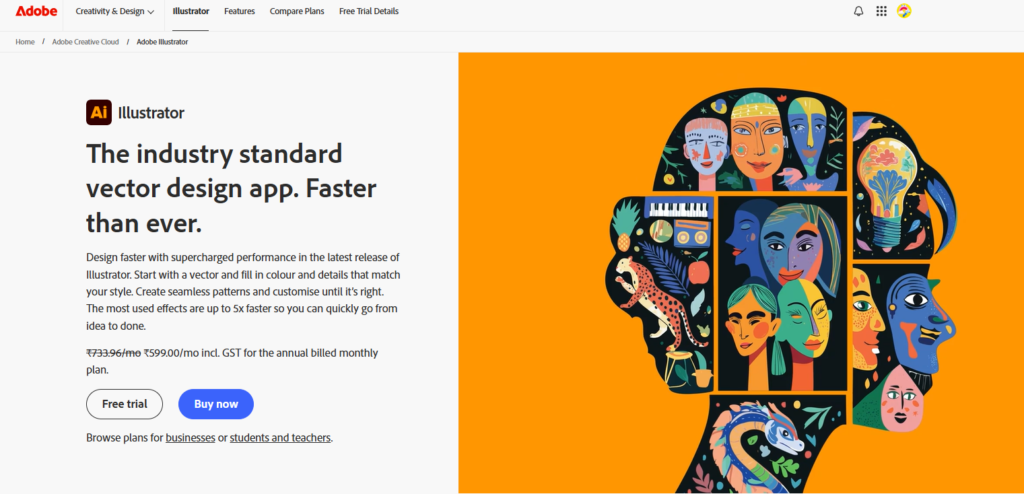
Adobe Illustrator leads as the premier software to create vector images, empowering designers with robust tools for everything from intricate logos to expansive billboards. Launched in 1987, it integrates seamlessly with Adobe Creative Cloud Pro like Photoshop and XD, supporting multi-platform workflows on Windows, macOS, iPad, and browsers. Its vector engine excels in vector art creation, handling complex paths and gradients with unmatched stability. Ideal for print and digital media, Illustrator’s performance shines in high-resolution outputs, making it a staple for agencies and freelancers.
With cloud libraries and extensive font support, it streamlines asset management. Regular updates introduce AI-driven features like generative shapes, keeping it ahead in scalable vector design tools. For UI designers, its artboards and symbols facilitate responsive prototyping. Whether building SVG creation software exports or custom icons, Illustrator’s precision defines professional standards in vector graphics software. Designers can also explore options to create an image with AI as a complement to their vector workflows.
Key Features of Adobe Illustrator:
- Pathfinder and Shape Builder: Merge, subtract, and unite shapes effortlessly for complex software to create vector image compositions.
- Live Trace and Image Trace: Convert raster photos to editable vectors with adjustable fidelity.
- Gradient and Mesh Tools: Create photorealistic shading and 3D effects on paths.
- Perspective Grid: Align objects accurately for realistic scenes.
- Cloud Libraries and Assets: Sync colors, brushes, and graphics across devices.
Pro Tip: Use the “Recolor Artwork” panel to swap entire palettes instantly, saving hours on branding revisions. Question: How can Illustrator’s neural filters elevate your next client mockup?
2. Affinity Designer
Affinity Designer revolutionizes software to create vector images with its one-time purchase model and lightning-fast performance, rivaling Adobe as a top Adobe Illustrator alternative. Developed by Serif, it supports Windows, macOS, and iPad, blending vector, pixel, and export personas for hybrid workflows. Designers praise its pixel-perfect precision for web icons, illustrations, and print layouts. The non-destructive editing preserves layers indefinitely, ideal for iterative vector graphics software projects. With full SVG compatibility and RAW image handling, it caters to photographers transitioning to vectors. For more on Affinity’s capabilities, check out our comparison of Affinity Photo 2 vs Lightroom.
The non-destructive editing preserves layers indefinitely, ideal for iterative vector graphics software projects. With full SVG compatibility and RAW image handling, it caters to photographers transitioning to vectors. Its force-touch stylus support on iPad enhances natural drawing, while procedural textures add depth without rasterizing. For teams, export presets ensure consistency across formats like PDF and EPS. Affinity’s stability under heavy files positions it as essential scalable vector design tools for pros seeking efficiency.
Key Features of Affinity Designer:
- Vector Persona Tools: Advanced pen tool with pressure sensitivity for smooth software to create vector image curves.
- Non-Destructive Boolean Operations: Edit unions and intersections anytime without data loss.
- Pixel Persona Integration: Pixel Persona Integration: Seamlessly switch to raster for effects within vectors, similar to using free photo editing websites but integrated directly into your vector workflow.
- Isometric Grids: Build 3D-like illustrations with auto-snapping.
- Export Slices: Automated retina-ready outputs for web.
Quick Tip: Leverage the “Corner Tool” for perfect, rounded edges on logos. Question: Ready to ditch subscriptions? How will Affinity’s speed transform your daily designs?
3. CorelDRAW Graphics Suite
CorelDRAW excels in software to create vector images, particularly for print-heavy workflows like signage and packaging, with roots tracing back to 1989. Available on Windows and macOS, it bundles vector illustration, layout, and photo editing in one suite. Its multipage view mimics InDesign for brochures, while path tools for vectors handle intricate die-cuts precisely. Designers value its font manager and QR code generator for marketing materials.
LiveSketch converts hand-drawn sketches to vectors instantly, bridging traditional and digital art. With non-destructive effects and fountain fills, it supports photorealistic renders. Corel’s font foundry integration expands typography options, making it a powerhouse for branding. As a versatile professional vector illustration app, it exports flawlessly to SVG and AI formats. Designers creating mockups can also explore resources like Freepik mockup templates to complement their vector work.
Key Features of CorelDRAW:
- LiveSketch and Smooth Tool: Real-time sketch-to-vector conversion in software to create vector images.
- PowerTrace: AI-enhanced bitmap-to-vector tracing with color control, perfect for converting images from stock image websites or your own photography into editable vectors.
- Multi-Page Documents: Manage booklets and spreads intuitively.
- Envelope and Warp Tools: Distort shapes non-destructively.
- Built-in QR Generator: Embed trackable codes directly.
Insider Tip: Use “Block Shadow” for instant depth on flat vectors. Question: Struggling with print prep? How might Corel’s tracing upgrade your production pipeline?
4. Inkscape
Inkscape stands out as the best free software to create vector images, an open-source gem for budget-conscious designers worldwide. Cross-platform on Windows, macOS, and Linux, it mirrors Illustrator’s capabilities with a focus on SVG-native editing. Perfect for web graphics and diagrams, its bezier curve tools deliver pro-level control. Extensions marketplace adds filters and utilities, like barcode generation. Clones and patterns enable efficient repetitive designs, while the XML editor allows code-level tweaks. For designers seeking free tools across different mediums, pairing Inkscape with a best free AI photo editor creates a powerful no-cost design toolkit.
Clones and patterns enable efficient repetitive designs, while the XML editor allows code-level tweaks. For educators and hobbyists, its tutorials foster skill-building in vector art creation. Despite lacking cloud sync, its zero-cost model and community plugins make it indispensable free vector editors. Scalability rivals paid tools for logos and icons.
Key Features of Inkscape:
- Node Editing: Fine-tune anchor point editing with sculpting modes for software to create vector images.
- Path Effects: Apply bends, envelopes, and patterns dynamically.
- Tracing Bitmap: Potrace-powered auto-vectorization.
- Clipping and Masking: Non-destructive layer control.
- Extensions Gallery: Custom scripts for automation.
Power Tip: Install the “Interpolate” extension for smooth animations. Question: New to vectors? What first project will Inkscape help you prototype for free?
5. Sketch
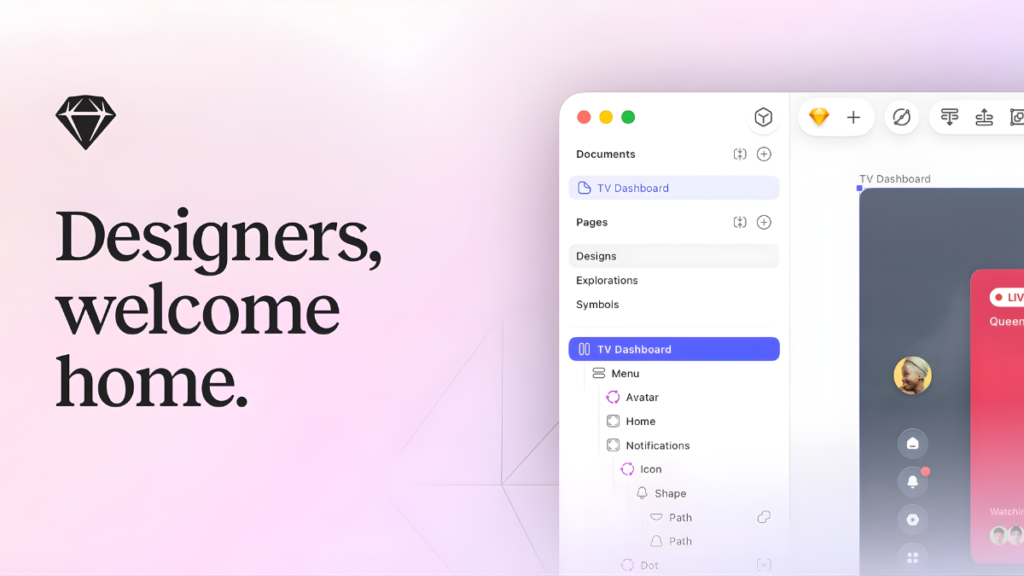
Sketch dominates UI/UX design in software to create vector images, tailored for macOS with a lightweight, symbol-driven approach. Since 2010, it powers app interfaces via artboards and nested symbols, reducing file bloat. Its vector shapes and boolean operations streamline prototyping, with cloud collaboration via Versions. The plugins ecosystem, including Abstract for exports, extends functionality.
For web designers, CSS export and device previews ensure pixel-perfect handoff. Mirrors and grids accelerate symmetrical layouts, vital for icons. As a scalable vector design tool, it integrates with Figma for teams. Though Mac-only, its speed makes it a favorite among startups.
Key Features of Sketch:
- Symbols and Overrides: Reusable components for scalable software to create vector images.
- Nested Booleans: Complex shapes via unions and subtracts.
- Smart Layouts: Auto-resizing for responsive prototypes.
- Plugin Manager: Thousands of extensions for SVG creation software.
- Cloud Prototyping: Interactive previews.
Hack Tip: Use “Flatten” on booleans sparingly to maintain editability. Question: Designing mobile apps? How can Sketch’s symbols cut your iteration time in half?
6. Gravit Designer
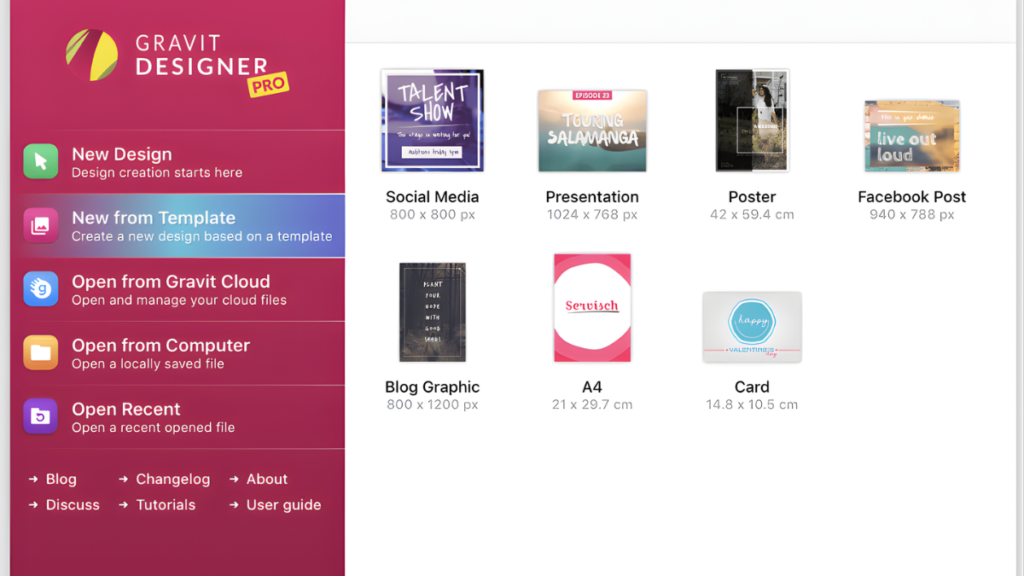
Gravit Designer, now Corel Vector, offers cloud-first software to create vector images accessible via browser, desktop, and mobile. Its hybrid raster-vector engine suits quick mocks and illustrations. Free tier with pro upgrades, it shines in collaborative teams with real-time editing. Advanced anchors and auto-layouts aid UI work, while dem bones for rigging enable animations. Export to multiple formats including Lottie for web motion. Its dark mode and gesture support enhance usability. Ideal Adobe Illustrator alternatives for remote designers.
Key Features of Gravit Designer:
- Dem Bones Rigging: Animate vectors with skeletal deformation in software to create vector images.
- Auto-Layout Panels: Responsive grids for UI.
- Cloud Sync: Multi-device editing.
- Advanced Anchors: Precise path tools for vectors.
- Lottie Export: Motion graphics for web.
Something Unique: Tip: Pair with Corel for hybrid workflows. Question: Need instant sharing? How will Gravit’s cloud speed up client feedback loops?
7. Vectr
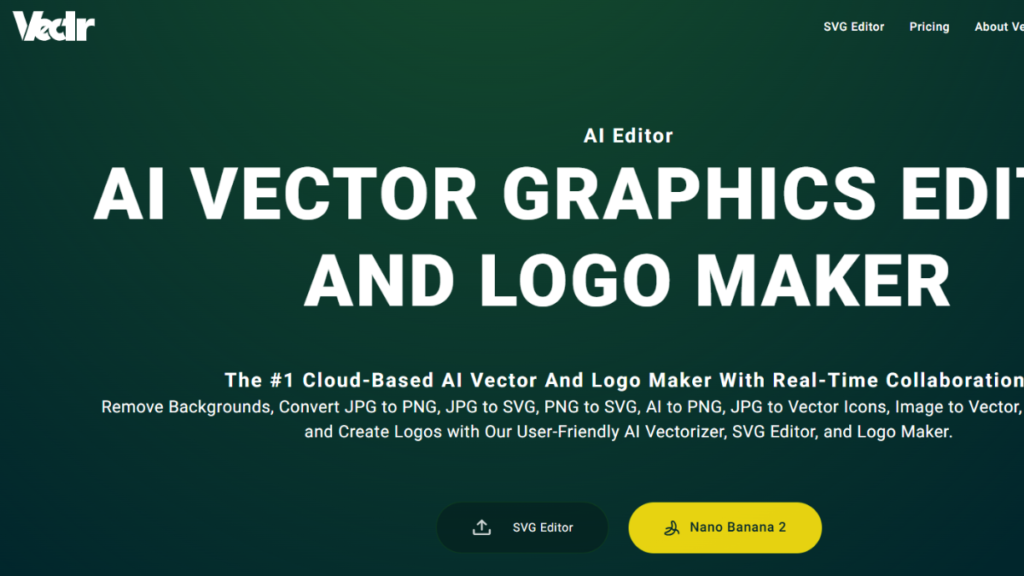
Vectr delivers instant-access free software to create vector images through its intuitive web browser and lightweight desktop apps for Windows, macOS, and Linux no downloads or installations required. Launched as a collaborative powerhouse, its real-time multiplayer canvas lets teams edit simultaneously, making it ideal for remote design sprints, client reviews, and educational workshops. Background transparency ensures clean exports for web overlays, while built-in GIF previews streamline social media asset creation.
Don’t let the clean, minimalist interface fool you; Vectr packs professional-grade tools like precise arc creation, freehand drawing with smoothing, and versatile pattern fills for complex vector art creation. Its native SVG support guarantees crisp scalability across devices, perfect for SVG creation software needs in web development and UI design. As one of the top free vector editors, Vectr bridges beginners and pros with drag-and-drop shapes, alignment guides, and layer management that rival paid scalable vector design tools.
Key Features of Vectr:
- Real-Time Collaboration: Edit live with team members using software to create vector images for instant feedback.
- Arc and Freehand Tools: Smooth, intuitive curve drawing with pressure sensitivity.
- GIF and Transparency Support: Web-ready outputs with alpha channels.
- Layers and Groups: Organized, non-destructive workflows.
- One-Click Export: SVG/PNG bundles optimized for the web.
Pro Tip: Use multiplayer for brainstorming sessions, share a link, and watch ideas evolve in real-time. Question: Collaborating remotely? What team project starts with Vectr today?
Why Choose the Right Vector Graphics Software?
Choosing the right vector image creation software is essential for achieving professional results, scalability, and workflow efficiency in digital design.
- Precision and Scalability: Vector graphics software allows for infinite scaling without loss of quality, making it ideal for logos, illustrations, and print projects.
- Editing Flexibility: These tools provide advanced anchor point editing and shape manipulation, enabling designers to tweak every detail with ease.
- Format Compatibility: Leading best vector software supports multiple export formats like SVG, EPS, and PDF, ensuring compatibility across platforms and devices.
- Workflow Efficiency: Features such as layers, groups, and reusable symbols streamline design processes for both individuals and teams.
- Integration and Collaboration: Many vector graphics applications offer cloud-based collaboration, real-time editing, and integration with other creative tools.
- AI and Automation: Modern vector software includes AI-powered features like generative shapes, automatic tracing, and smart layout tools, boosting productivity. These tools work alongside other AI capabilities to create an image with AI for comprehensive design workflows.
Selecting the right vector graphics software empowers designers to create high-quality, scalable artwork efficiently and adapt to diverse project needs
Closing Thoughts
Picking the right vector image editor is a game-changer for any designer. The best tools not only make your work look professional but also save time with features like anchor point editing, shape builders, and scalable vector design tools. Whether you’re working on logos, illustrations, or web graphics, using the right vector graphics software ensures your creations stay sharp and flexible at any size.
From free vector editors to advanced professional vector illustration apps, there’s a solution for every need and budget. With AI-powered vector generators and seamless collaboration options, the future of design is brighter than ever. For those looking to monetize their skills, learning to sell photos on Shutterstock can complement your vector design work. So, explore your options, try out different tools, and find the one that fits your style.