Running a successful Shopify store requires more than great products. Over 67% of Shopify stores lose potential organic traffic due to preventable SEO issues. Take Sarah, for instance. She launched her fashion store with high hopes. However, her site barely appeared in search results. After six months, she discovered critical Shopify SEO problems holding her back.
Despite Shopify being SEO-friendly, common problems persist across stores. These issues can dramatically impact your visibility. Fortunately, most Shopify SEO problems have straightforward solutions. In this guide, you’ll discover 10 common problems and actionable fixes. Moreover, these solutions don’t require coding knowledge. Let’s explore how fixing these issues can transform your store’s performance.
Why Shopify SEO Problems Matter for Your Store?
Addressing Shopify SEO problems directly impacts your bottom line. Organic traffic converts 10 times better than paid advertising. When search engines struggle to crawl your site, potential customers never find you. Furthermore, SEO issues affect user experience significantly. Slow loading speeds frustrate visitors and increase bounce rates.
Consider Dollar Shave Club’s success story. They built their empire on effective ecommerce SEO strategies. Mobile-first indexing now dominates search rankings. Therefore, mobile optimization isn’t optional anymore. Additionally, proper SEO connects directly to conversion rates. When visitors find what they need quickly, they buy more frequently. Fixing these problems creates long-term sustainable growth. Instead of paying for every click, you’ll earn organic traffic consistently.

Problem #1: Understanding Duplicate Content: The Most Common Shopify SEO Problems
How Shopify Creates Duplicate URLs
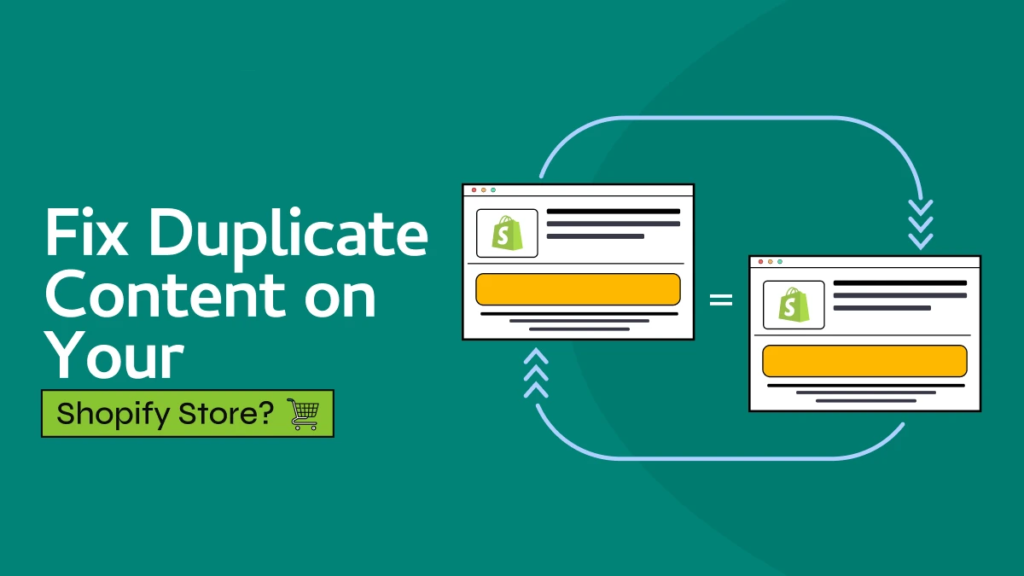
Shopify automatically generates multiple URLs for the same product, which leads to Shopify SEO problems for many stores. For example, your red jacket appears at domain.com/products/red-jacket. However, it also exists at domain.com/collections/winter/products/red-jacket. Consequently, search engines see identical content across different URLs. This splits your ranking signals and confuses Google’s algorithm.
Research shows 29% of ecommerce sites face this Shopify SEO problems scenario, where search engines can’t determine which version to rank. As a result, product pages compete against themselves, and valuable crawl budget is wasted. Instead of discovering new pages, Google repeatedly crawls duplicates, further intensifying Shopify SEO problems and limiting organic growth.
Solutions to Fix Duplicate Content
Implement Canonical Tags
First, add canonical tags to your theme files. Navigate to your theme editor in Shopify. Then, insert canonical URLs pointing to your main product page. This tells Google which version is primary. Most importantly, this preserves link equity while solving duplication issues.
Use 301 Redirects Strategically
Alternatively, set up 301 redirects for unnecessary URL variations. Choose redirects when completely removing alternate URLs. Otherwise, canonical tags work better for keeping multiple access points.
Optimize Internal Linking Structure
Consistently link to your preferred product URL throughout your site. Update navigation menus and collections accordingly. Furthermore, ensure blog posts link to canonical URLs only.
Pro Tip: Apps like Tapita and Canonicalizer automate this process. These tools save hours of manual work. Check out the best SEO app for Shopifyfor detailed comparisons.
Problem #2: Slow Page Loading Speed
Why Speed Impacts Your Rankings
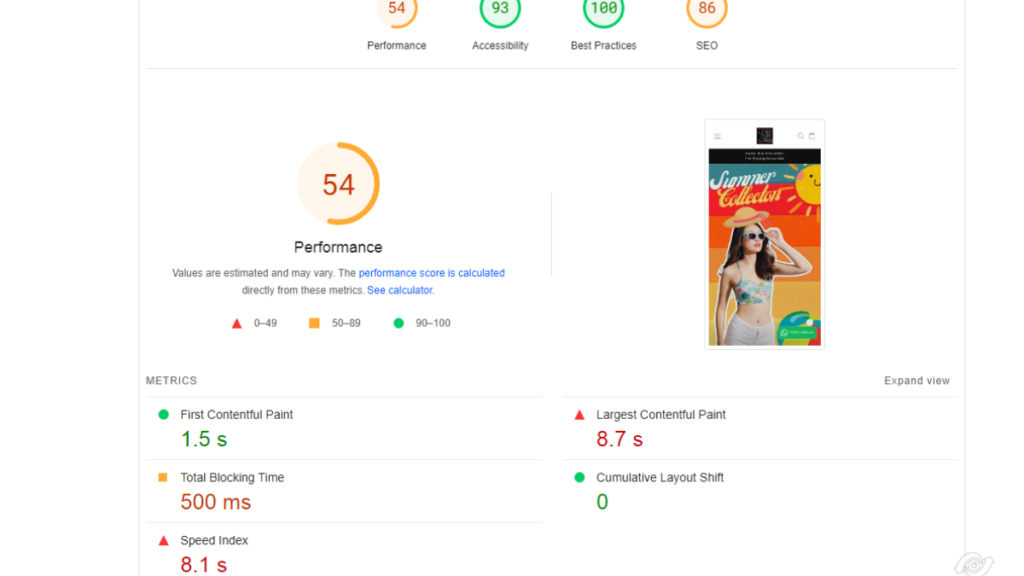
Google considers page speed a critical ranking factor, especially as mobile users expect sites to load in under three seconds. However, many Shopify stores struggle with Shopify SEO problems caused by large uncompressed images, excessive apps that add bloated code, and heavy themes that slow performance significantly.
Research proves every 1-second delay causes 7% conversion loss. Consequently, slow sites lose money directly. Visitors bounce before your page even loads. Therefore, addressing speed becomes essential for Shopify optimization.
Solutions to Boost Loading Speed
Optimize Your Images
Compress every image before uploading to Shopify. Use TinyPNG or similar compression tools. Keep product images under 200KB while maintaining quality. Additionally, consider WebP format for better compression. Ideal dimensions are 2048x2048px maximum for product photos.
Audit and Remove Unused Apps
Each installed app adds code to your site. Review your apps quarterly and remove unused ones. Furthermore, consolidate functionality where possible. Instead of five different apps, find one comprehensive solution.
Choose Lightweight Themes
Shopify’s Dawn theme offers excellent performance. Debut also provides speed without sacrificing functionality. Avoid themes with excessive animations and custom code. Learn more about how to build a website on Shopify with performance in mind.
Implement Lazy Loading
Enable lazy loading for off-screen images. This defers loading until users scroll down. Consequently, initial page load speeds improve dramatically.
Tool Recommendation: Test your site using Google PageSpeed Insights. GTmetrix provides detailed performance reports. Both tools identify specific optimization opportunities. For more tips, check our guide onhow to speed up Shopify website.
Problem #3: Missing or Duplicate Meta Tags
Understanding Meta Tag Importance
Meta tags serve as your store’s first impression. Title tags and meta descriptions appear in search results. Unfortunately, missing or duplicate tags plague many Shopify stores. These Shopify SEO issues directly affect click-through rates.
Meta descriptions don’t directly influence rankings. However, compelling descriptions improve CTR by 20-30%. Meanwhile, title tags remain crucial ranking factors. Search engines use them to understand page content.
Solutions to Optimize Meta Tags
Write Unique Meta Titles
Create distinctive titles for every page. Follow this formula: Primary Keyword | Brand Name. Keep titles under 60 characters for optimal display. Moreover, place important keywords at the beginning.
Craft Compelling Meta Descriptions
Limit descriptions to 150-160 characters. Include your target keyword naturally within the text. Additionally, add clear call-to-action phrases. Make visitors want to click through.
Use Bulk Editing Tools
Shopify apps like Smart SEO simplify mass updates. FavSEO offers templates for consistent optimization. These tools save enormous amounts of time.
Pro Tip: Monitor Google Search Console for meta tag warnings. GSC identifies duplicate or missing tags automatically.
Problem #4: Poor Mobile Optimization

Google’s mobile-first indexing prioritizes mobile experiences. Over 70% of ecommerce traffic comes from mobile devices. Therefore, poor mobile UX tanks your rankings. Additionally, frustrated mobile users abandon purchases quickly.
Common mobile issues include tiny tap targets. Slow mobile load times drive visitors away. Unresponsive design elements break user experience. Furthermore, complicated navigation confuses smartphone users.
Solutions for Better Mobile Experience
Choose Mobile-Responsive Themes
Select themes explicitly designed for mobile. Test themes on multiple devices before committing. While most Shopify themes claim mobile-friendliness, verify this personally.
Simplify Mobile Navigation
Implement clean hamburger menus when appropriate. Ensure all buttons meet 48×48 pixel minimum size. This makes them thumb-friendly for touchscreen users.
Test Regularly
Use Google’s Mobile-Friendly Test tool frequently. Additionally, test your checkout process on actual mobile devices. Small issues often hide in the payment flow.
Problem #5: Unoptimized Image Alt Text

Alt text serves dual purposes for accessibility and SEO. Unfortunately, 76% of Shopify stores neglect this entirely. These Shopify SEO problems cost valuable image search traffic. Moreover, visually impaired users can’t navigate your site properly.
Solutions to Optimize Image Alt Text
Add Manual Alt Text Correctly
Follow this formula: [Product name] [Key feature] [Color/Style]. For example, write “Red leather jacket with zipper detail.” Never stuff keywords unnaturally into alt text.
Bulk Optimize with Apps
SEO Image Optimizer handles multiple images simultaneously. Smart SEO generates descriptive alt text automatically. These apps use tokens for consistent formatting.
Optimize File Names Before Upload
Rename images before uploading to Shopify. Change “IMG_1234.jpg” to “red-leather-jacket.jpg” instead. Always use hyphens between words, not underscores.
Impact: Proper alt text drives 20-30% additional traffic from Google Images. This represents untapped potential for most stores.
Problem #6: URL Structure Restrictions

Understanding URL Limitations
Shopify forces /collections/ and /products/ into every URL. You can’t create deep hierarchical URL structures. For instance, /category/subcategory/product isn’t possible. Consequently, this limits keyword targeting opportunities significantly.
This platform restriction reduces site architecture flexibility. Moreover, you miss opportunities for long-tail keyword targeting. While frustrating, workarounds exist for savvy store owners.
Workarounds for URL Restrictions
Optimize URL Handles
Make URL slugs descriptive and keyword-rich. Edit them when creating products initially. Choose “mens-running-shoes-blue” over generic “product-123” slugs. This maximizes available URL optimization space.
Strengthen Internal Linking
Implement breadcrumb navigation throughout your site. Create dedicated category content pages. Furthermore, link strategically using keyword-rich anchor text. If you’re experiencing issues, our guide on Shopify redirect not working can help.
Focus on Other On-Page Elements
Since URLs remain limited, double down elsewhere. Optimize H1 tags, H2 headings, and body content. Consequently, these elements compensate for URL restrictions.
Note: Accept this as a platform limitation. Instead of fighting it, focus on controllable factors.
Problem #7: Thin Content from Blog and Product Tags
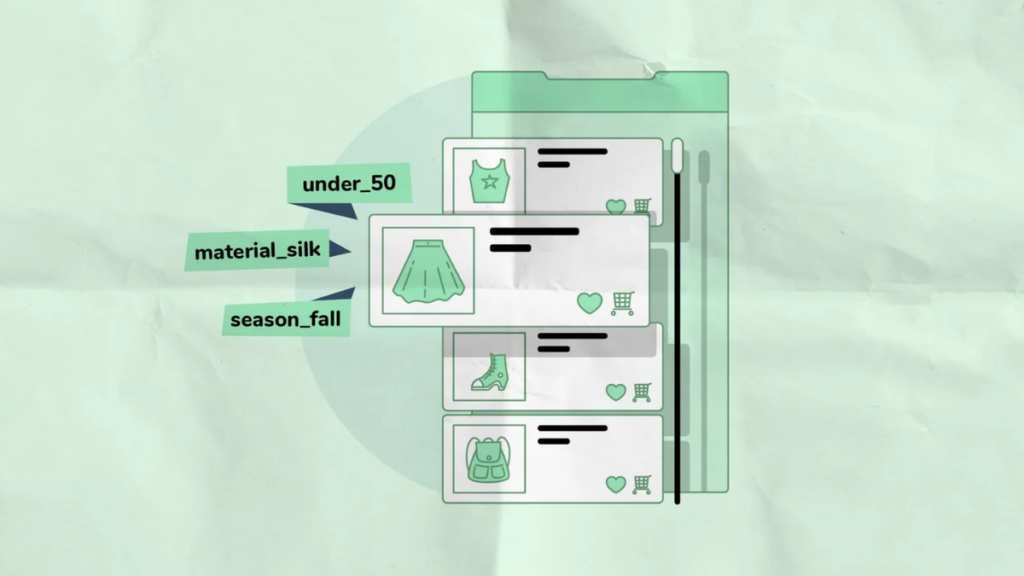
Shopify automatically generates tag pages for blogs. For example, /blogs/news/tagged/summer creates a dedicated page. However, these pages often contain minimal content. Hundreds of low-value pages can accumulate quickly.
Search engines may penalize sites for thin content. These Shopify SEO issues dilute your site’s overall quality. Moreover, they waste crawl budget on worthless pages.
Solutions to Handle Tag Pages
Canonicalize Tag Pages
Point tag pages to relevant collection pages. This tells Google which version matters most. Implement this through theme file customization.
Be Selective with Tags
Avoid creating tags for every single post. Instead, maintain 10-15 strategic tags maximum. NextEvo Naturals exemplifies organized tag systems effectively.
NoIndex Tag Pages
Add meta robots noindex to tag pages. This prevents indexing while preserving navigation. Many Shopify apps automate this process.
Check Your Status: Search site:yourstore.com intitle:tagged in Google. This reveals how many tag pages exist.
Problem #8: Broken Links and 404 Errors
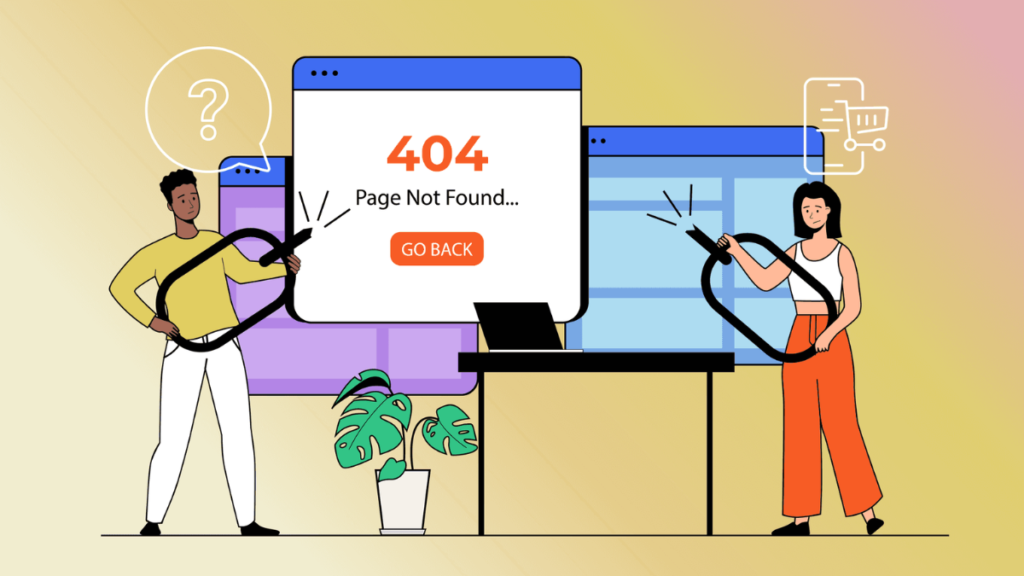
Broken links occur from deleted products frequently. Changed URLs create dead ends unexpectedly. Uninstalled apps leave orphaned pages behind. Consequently, these Shopify SEO problems frustrate visitors and search engines.
Poor user experience damages your reputation subtly. Additionally, search engines interpret 404s as maintenance neglect. You also lose valuable link equity unnecessarily.
Solutions to Fix Broken Links
Conduct Regular Link Audits
Use Google Search Console to identify 404 errors. Schedule quarterly link cleanup reviews consistently. Alternatively, check monthly for high-traffic stores.
Set Up 301 Redirects
Navigate to Shopify Admin → Navigation →URL Redirects. Redirect old URLs to relevant new pages. For site migrations, use bulk upload functionality. Managing inventory management on Shopify helps prevent product deletion issues.
Fix Internal Broken Links
Apps like Broken Link Checker identify internal issues. Update links in navigation menus immediately. Additionally, review product descriptions and blog posts.
Pro Tip: Always create redirects before deleting products. Point them to category pages or similar products.
How to Avoid These Shopify SEO Problems in the Future
Prevention beats reactive fixes every time. Regular maintenance catches issues before they hurt rankings. Moreover, systematic approaches save time and money long-term.
Conduct Regular SEO Audits
Perform monthly or quarterly comprehensive audits. Use tools like Screaming Frog for deep analysis. Ahrefs and SEMrush identify technical issues quickly. Create checklists covering common problems systematically.
Monitor Google Search Console Weekly
Check GSC every week for new warnings. Catch emerging issues before they escalate. Track performance trends to identify patterns. Fix coverage issues within 48 hours ideally.
Stay Updated on Platform Changes
Follow Shopify’s official changelog religiously. Join Shopify Community forums for peer insights. Subscribe to SEO blogs specializing in Shopify optimization.
Invest in Quality SEO Apps
Quality apps provide cost-effective automation. ROI typically reaches 10:1 for SEO applications. Read reviews carefully before installing anything. For dropshipping stores, check our best apps for dropshipping guide.
Build SEO into Workflows
Create checklists for adding new products. Develop standard procedures for content creation. Train team members on basic SEO principles. Additionally, streamline Shopify abandoned checkout recovery alongside SEO efforts.
Top Shopify SEO Tools and Apps to Help
Selecting the right tools makes fixing Shopify SEO issues easier. However, too many apps slow your site down.
Comprehensive SEO Solutions:
- Tapita SEO & Speed Optimizer handles multiple issues
- Smart SEO provides bulk optimization features
- SEO Manager by FireApps offers advanced controls
Specific Problem Solvers:
- Image Optimization: TinyIMG, SEO Image Optimizer compress automatically
- Meta Tags: Plug in SEO, FavSEO simplify bulk editing
- Speed: Booster Theme, Speed Optimizer improve performance
- Broken Links: Broken Link Checker identifies issues quickly
Free Essential Tools:
- Google Search Console remains absolutely essential
- Google PageSpeed Insights diagnoses speed problems
- Google Mobile-Friendly Test checks mobile optimization
- Screaming Frog (free version) audits technical SEO
App Selection Tips:
Check reviews and ratings thoroughly first. Test apps using free trials before purchasing. Avoid installing too many simultaneously since they impact speed. Choose apps solving multiple problems when possible. For Shopify print on demand stores, prioritize image optimization tools.
Additionally, consider best email marketing app for Shopify to complement your SEO efforts. Remember that best payment provider for Shopify choices also affect conversion rates.
Conclusion
Shopify SEO Problems affect thousands of stores, including duplicate content, slow page speeds, missing meta tags, poor mobile optimization, and broken links that hurt rankings and drive visitors away. Fortunately, these Shopify SEO Problems are common, fixable, and rarely require advanced coding. Small, consistent improvements compound over time, turning basic optimizations into meaningful, long-term organic traffic growth for online businesses.
Fixing Shopify SEO Problems requires steady progress, not overnight perfection. Start with a quick audit, fix the easiest issues first, and use Google Search Console to track results. By addressing Shopify SEO Problems systematically, monitoring performance monthly, and refining strategies, you build sustainable visibility and reliable organic traffic growth consistently.
Ready to build your optimized Shopify store from the ground up? Get started with Shopify today and implement these best practices immediately. Your future customers are searching right now.