In today’s fast-moving work environment, teams often juggle multiple tools, scattered notes, and endless message threads. This creates confusion, missed deadlines, and extra stress for everyone involved. Staying organized feels impossible when tasks are spread across apps and emails. ClickUp project management software provides a single platform to keep everything in one place. It helps teams plan, track, and manage work without switching between tools.
For many teams, managing projects is like trying to solve a puzzle with missing pieces. Deadlines slip, priorities get lost, and communication breaks down. ClickUp acts like a sturdy board that holds all the pieces together. It centralizes tasks, updates, and documents in one digital workspace. This makes collaboration smoother and keeps everyone aligned.
This guide will explain what ClickUp is, its key features, and why it matters. You’ll learn how it organizes work and reduces stress. By the end, you’ll understand why teams rely on it to stay productive.
What Is ClickUp Project Management Software?
ClickUp project management software is a cloud-based platform that helps teams plan, organize, and track work in one place. It allows users to create tasks, assign responsibilities, set deadlines, and monitor progress without juggling multiple apps. You can store files, documents, and chats alongside tasks, which makes collaboration smooth and efficient.
Think of ClickUp as a digital toolbox: instead of carrying separate tools for each job, you keep everything you need neatly stored in one spot.. Teams can visualize their work using lists, boards, calendars, or Gantt charts, depending on their preferred style. By centralizing tasks, communications, and documents, ClickUp keeps work organized, reduces errors, and saves valuable time.
With ClickUp, managing projects becomes simpler and more predictable. Whether you’re a freelancer, a small team, or part of a larger organization, it provides clarity and control. It turns chaotic workflows into structured processes, allowing teams to focus on what truly matters: completing tasks efficiently and effectively.
Importance of Using a Tool Like ClickUp
In today’s work environment, scattered tasks, endless messages, and missed deadlines can slow progress and create stress. A tool like ClickUp project management software brings order and clarity, helping teams focus on what truly matters. It keeps everyone on the same page, ensures priorities are visible, and reduces confusion that often slows projects down.
By using ClickUp, teams can clearly see what needs to be done, who is responsible, and when tasks are due. This makes accountability simple and prevents work from slipping through the cracks. Instead of spending hours chasing updates or switching between apps, teams can spend more time completing tasks and achieving goals.
Here’s why ClickUp is so important:
- Clarity in daily tasks: Teams can easily see priorities and what needs attention first.
- Centralized workflow: All work is in one platform, which saves time and eliminates constant app switching.
- Enhanced collaboration: ClickUp connects communication, documents, and tasks, which makes teamwork smoother.
Overall, ClickUp turns chaotic workflows into structured, predictable processes. Teams work more efficiently, reduce mistakes, and focus on delivering results instead of managing confusion.
How to Use ClickUp (Step-by-Step Guide)
Getting started with ClickUp project management software is simple, even for beginners. By following a few structured steps, you can organize tasks, track progress, and collaborate efficiently.
1. Create Your Workspace:
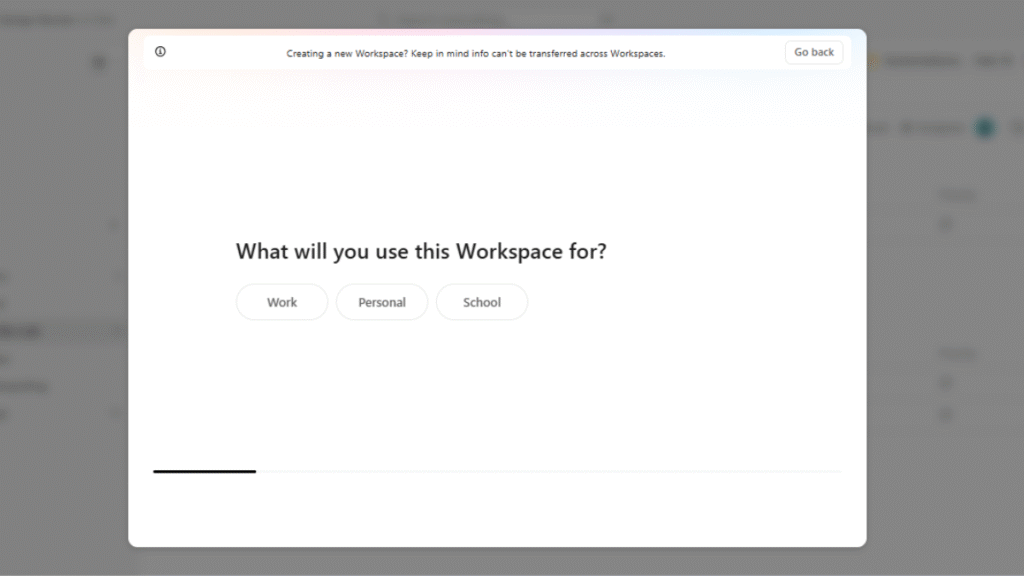
Start by signing up and creating a workspace for your team or project in ClickUp project management software. Personalize it with a name, logo, and relevant settings so it reflects your team’s workflow and style. This workspace organizes all your tasks, projects, and communications in one central hub. By having everything in one place, your team can easily access what they need, collaborate efficiently, and stay aligned on priorities without switching between multiple apps.
2. Set Up Spaces and Lists:
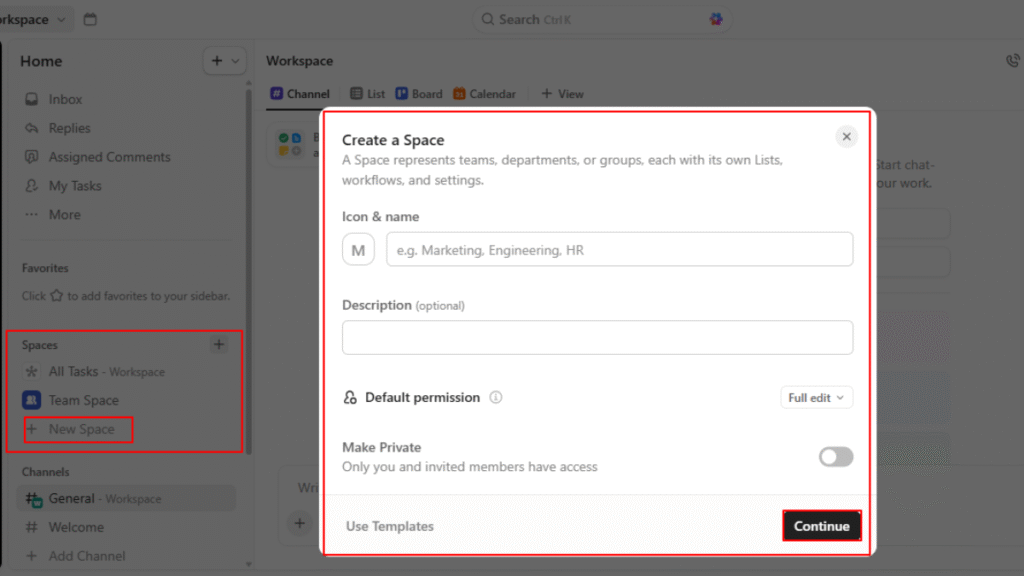
Next, organize your work by creating Spaces for different teams, projects, or departments. Each Space acts like a folder that keeps related tasks together. Within these Spaces, create Lists to categorize tasks by project phase, priority, or type of work. This layered structure reduces clutter, makes it easier to locate tasks, and gives everyone a clear overview of what needs attention. By arranging work this way, your team can quickly understand responsibilities and focus on completing tasks efficiently.
3. Add Tasks and Subtasks:
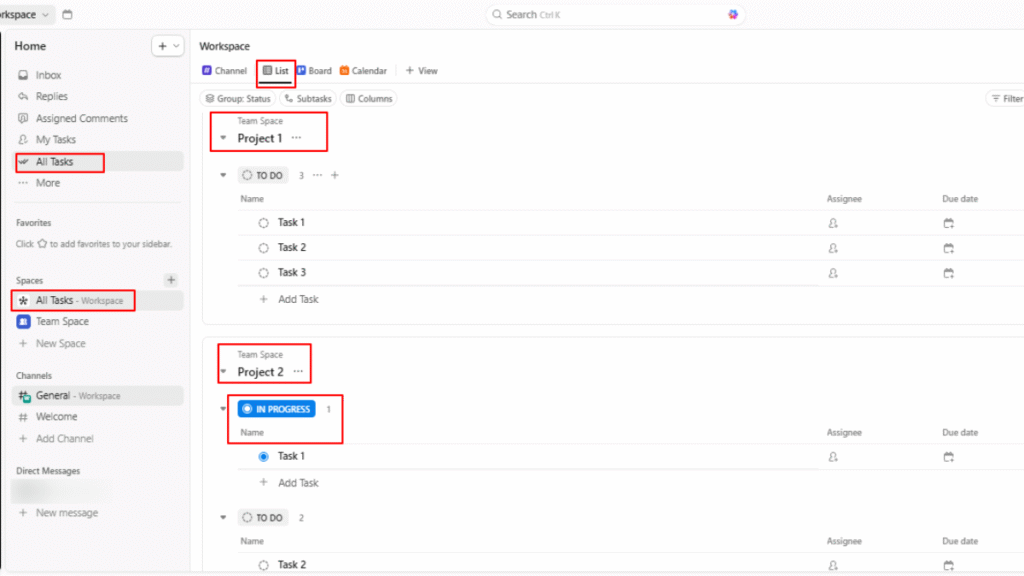
After setting up Spaces and Lists, start creating tasks for every action item or milestone. Include detailed descriptions, set due dates, and assign team members to each task so everyone knows their responsibilities. For larger tasks, break them down into subtasks to make them more manageable and clear. Attach relevant files, notes, or links directly to tasks to store all important information in one place. This approach organizes work, prevents your team from overlooking details, and helps everyone stay focused and productive.
4. Use Views to Visualize Work:
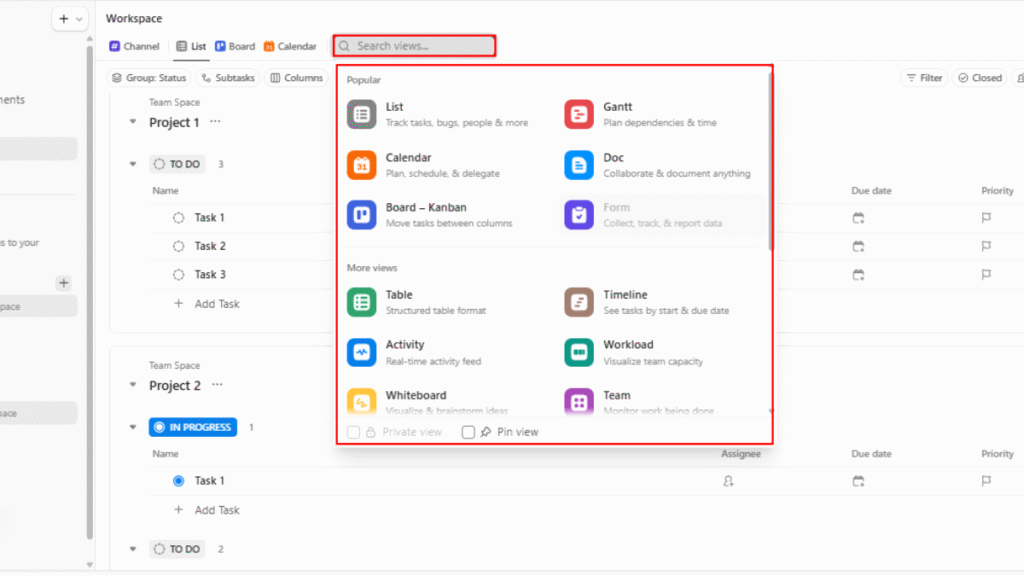
Once you set up your tasks, use ClickUp’s multiple views to see work from different perspectives. You can switch between List view for detailed task management, Board view for a Kanban-style workflow, Calendar view to plan deadlines visually, or Gantt view to track timelines and dependencies. Using these views helps you prioritize tasks, identify bottlenecks, and manage projects more efficiently. By seeing work from different angles, your team can plan better, stay on schedule, and ensure that nothing falls through the cracks.
5. Assign Tasks and Set Priorities:
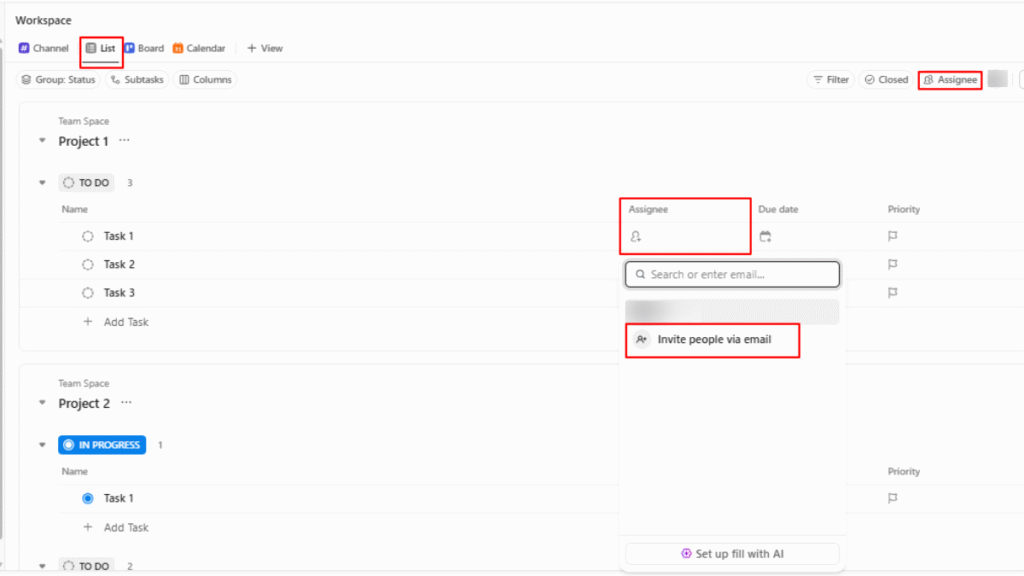
After organizing your tasks, assign them to the appropriate team members and set clear priorities to indicate urgency. You can also use tags, labels, or custom fields to add extra context, such as project type, department, or status. Clear assignments and priorities ensure everyone knows exactly what they are responsible for and what needs attention first. This reduces confusion, prevents duplicated effort, and keeps the team focused on the most important tasks, helping projects move forward smoothly and efficiently.
6. Set Reminders and Notifications:
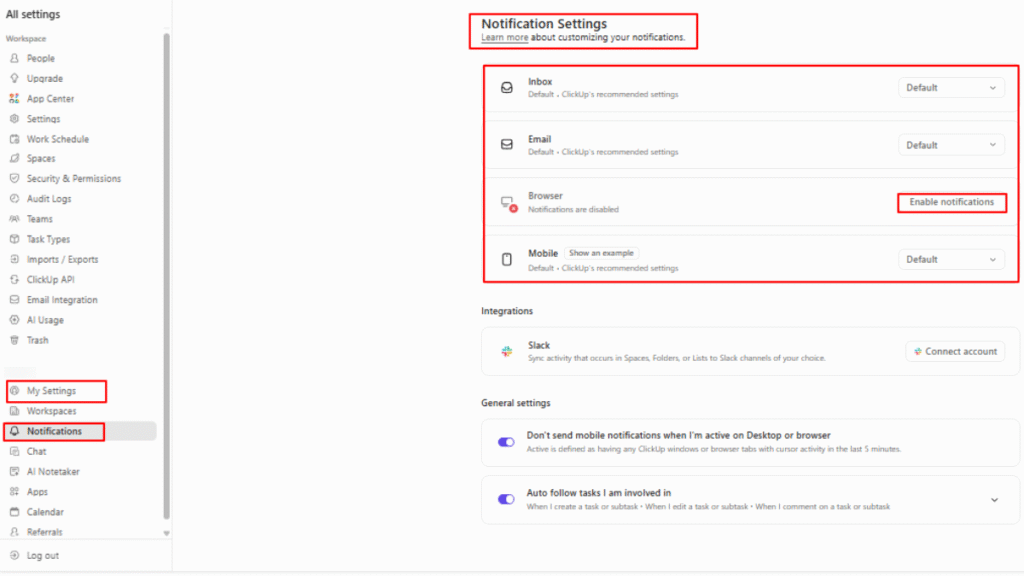
To stay on top of deadlines and updates, enable reminders and notifications within ClickUp. You can set alerts for upcoming due dates, task comments, or changes in status. These reminders help ensure that important tasks are never overlooked and that deadlines remain visible to everyone involved. By keeping the team informed in real time, ClickUp reduces the risk of missed deadlines, prevents miscommunication, and allows everyone to stay focused on completing tasks efficiently.
7. Collaborate and Review Progress:
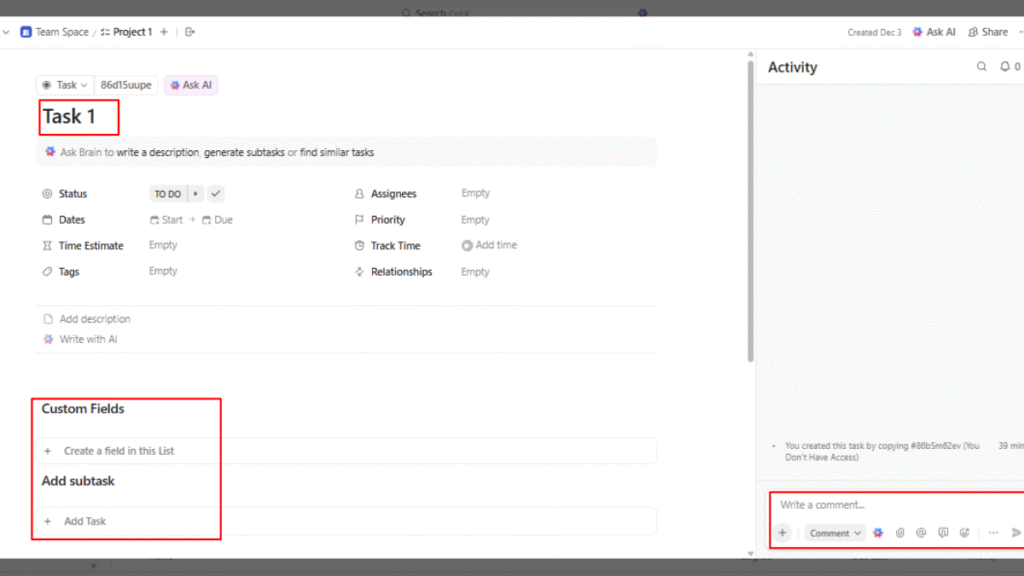
Finally, make the most of ClickUp’s collaboration tools by using comments, mentions, and file sharing directly within tasks. This keeps all communication tied to the relevant work, so nothing gets lost in emails or chat threads. Regularly review dashboards and reports to monitor progress, track completed and pending tasks, identify bottlenecks, and adjust plans as needed. By combining collaboration with ongoing progress tracking, teams can stay aligned, make informed decisions quickly, and ensure projects move forward smoothly and efficiently.
By following these 7 steps, you can quickly get ClickUp running for your team. It transforms messy workflows into organized, manageable processes, helping teams stay focused and productive.
Key Features of ClickUp Project Management Software:
ClickUp project management software comes packed with features designed to simplify work and keep teams organized. Its tools allow users to create and manage tasks, track progress in real time, collaborate seamlessly, and automate repetitive processes. From visual project views to integrated documents and dashboards, every feature is built to improve efficiency, reduce confusion, and help teams achieve their goals more effectively.
- Task Management: Create tasks and subtasks with deadlines, assignees, attachments, and notes. This ensures no work gets lost and responsibilities are clear.
- Multiple Views: Use List, Board, Calendar, or Gantt views to visualize work in the way that suits your team best. Each perspective makes planning and tracking easier.
- Time Tracking: Built-in time tracking helps monitor progress and understand how long tasks take. It’s useful for productivity and accountability.
- Docs & Whiteboards: Create documents, project briefs, or visual plans directly in ClickUp. These stay linked to tasks, making collaboration seamless.
- Automation: Automate repetitive actions such as assigning tasks, updating statuses, or sending reminders. This reduces manual work and saves time.
- Dashboards: View overall project progress, completed tasks, and team workload in one glance. Dashboards make reporting simple and visual
These features work together like a well-coordinated machine. Instead of juggling multiple tools, teams can rely on ClickUp as a single platform that organizes, tracks, and streamlines work efficiently.
Comparison: ClickUp vs Other Popular Tools
| Tool | Strength / What It Does Best | Ideal For / Best Suited Teams | Free Plan / Entry-Level Option |
|---|---|---|---|
| ClickUp | All‑in‑one: tasks, docs, time‑tracking, automation, multiple views, dashboards | Teams of all sizes needing flexibility — freelancers, startups, small or medium teams, mixed project types | Yes — free plan available with core features |
| Asana | Clean interface, good for structured tasks & timeline‑based projects, balanced simplicity and power | Teams needing clear task/timeline management, moderate-sized teams, non‑tech projects | Yes — free plan (with limitations) |
| Trello | Very simple Kanban‑style board and card system; easy learning curve and quick start | Small teams, freelancers, simple to‑do lists, projects that don’t need complexity | Yes — free plan available, good for |
| Monday.com | Flexible, visually rich boards, many customization options and automation for varied workflows | Cross‑functional teams, marketing/ops teams needing flexible workflows and visuals | Entry‑level plan / trial — some features may be limited in free/trial |
| Wrike | Advanced project planning, good for larger teams/projects, stronger reporting and resource management | Medium to large teams, enterprises, teams needing detailed tracking & reporting | Free plan / basic entry-level with limited features |
Conclusion
ClickUp project management software is more than just a task manager; it’s a central hub where teams can plan, track, and complete work efficiently. By combining tasks, communication, documents, and progress tracking in one platform, it reduces confusion and improves productivity.
Whether you are a freelancer, a small team, or part of a larger organization, ClickUp helps streamline work, save time, and focus on results. Structured workflows, visual tools, and automation make project management easier, helping teams turn chaos into clarity.
In short, ClickUp simplifies work, keeps everyone aligned, and ensures tasks are completed on time without unnecessary stress, empowering teams to work smarter and achieve goals efficiently.