

Professional photographers today face a critical decision when choosing their primary editing software. Moreover, the debate between subscription-based platforms and one-time purchase tools has never been more relevant. Consequently, understanding which professional photo editing software fits your workflow can save thousands of dollars while maximizing creative output.
Adobe Lightroom has dominated the photo editing landscape for years with its comprehensive cataloging system. Meanwhile, Affinity Photo 2 has emerged as a powerful Lightroom alternative, offering advanced editing capabilities without recurring fees. Therefore, comparing Affinity Photo 2 vs Lightroom becomes essential for professionals seeking the right balance between features, cost, and workflow efficiency. This comprehensive photo editing comparison will examine pricing models, RAW editing capabilities, performance metrics, and real-world use cases. Additionally, we’ll explore how each platform handles non-destructive editing and image organization to help you make an informed investment decision.
Understanding Both Platforms
Before diving into the detailed comparison between Affinity Photo 2 vs Lightroom , let’s establish what each software brings to the table.
What is Adobe Lightroom
Adobe Lightroom stands as the industry-standard solution for RAW editing and photo cataloging. Furthermore, it integrates seamlessly with Adobe’s Creative Cloud ecosystem, providing synchronized access across devices. The platform operates on a subscription model with continuous updates and new features. Notably, Lightroom excels at batch editing, color grading, and managing extensive photo libraries. Consequently, volume photographers, wedding shooters, and event professionals rely heavily on its cataloging capabilities.
Affinity Photo 2
In contrast, Affinity Photo 2 represents a professional pixel editor developed by Serif, now owned by Canva. Unlike Lightroom, it focuses primarily on desktop-based editing with a persona-driven workflow. Moreover, it offers a one-time purchase model that eliminates recurring subscription costs. The software shines in advanced retouching, layer-based editing, and complex compositing work. Therefore, graphic designers and photographers requiring pixel-level control find it particularly appealing. Additionally, users familiar with Photoshop vs Lightroom for photo editing will recognize Affinity’s layer-based approach.
Affinity Photo 2 vs Lightroom: Core Features Comparison
Understanding the feature sets of both platforms reveals their fundamental differences and strengths.
RAW Processing Capabilities:
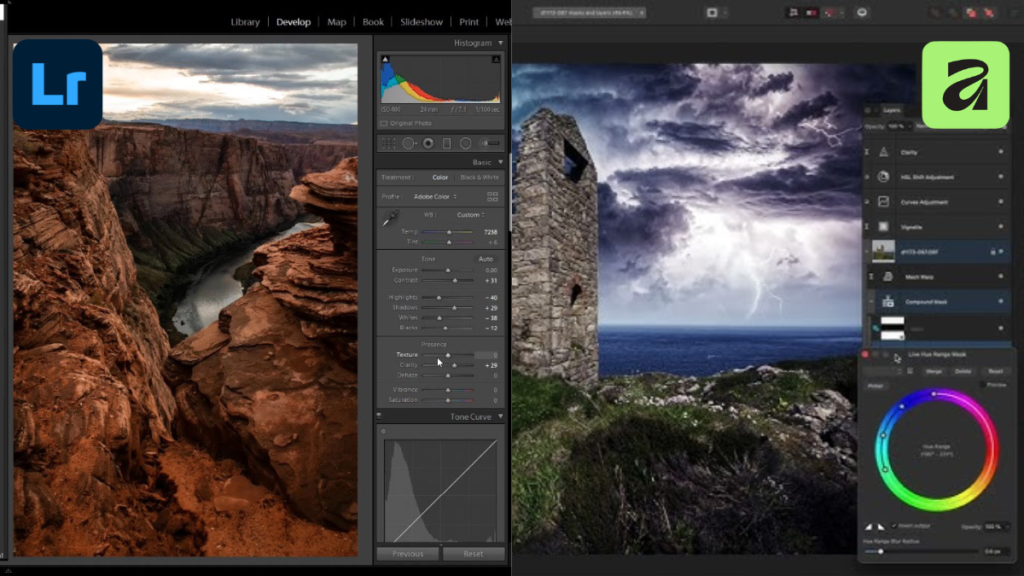
In the Affinity Photo 2 vs Lightroom comparison, RAW processing capabilities play a crucial role in determining which editor best suits professional and high-volume photography workflows.
Lightroom delivers a robust RAW engine supporting virtually every camera manufacturer. Subsequently, its slider-based adjustments feel intuitive for photographers transitioning from basic editing tools. The software provides dedicated Whites and Blacks controls for precise tonal adjustments. Furthermore, profile-based corrections automatically compensate for lens distortions and chromatic aberrations.
Affinity Photo 2 utilizes the Serif RAW Engine within its dedicated Develop Persona. However, its adjustment approach differs slightly, using exposure, brightness, and black point controls instead. Interestingly, Affinity provides camera-accurate initial renderings that maintain the original capture intent. Moreover, many professionals report superior high-ISO noise handling compared to Lightroom’s noise reduction algorithms.
Editing Tools & Interface
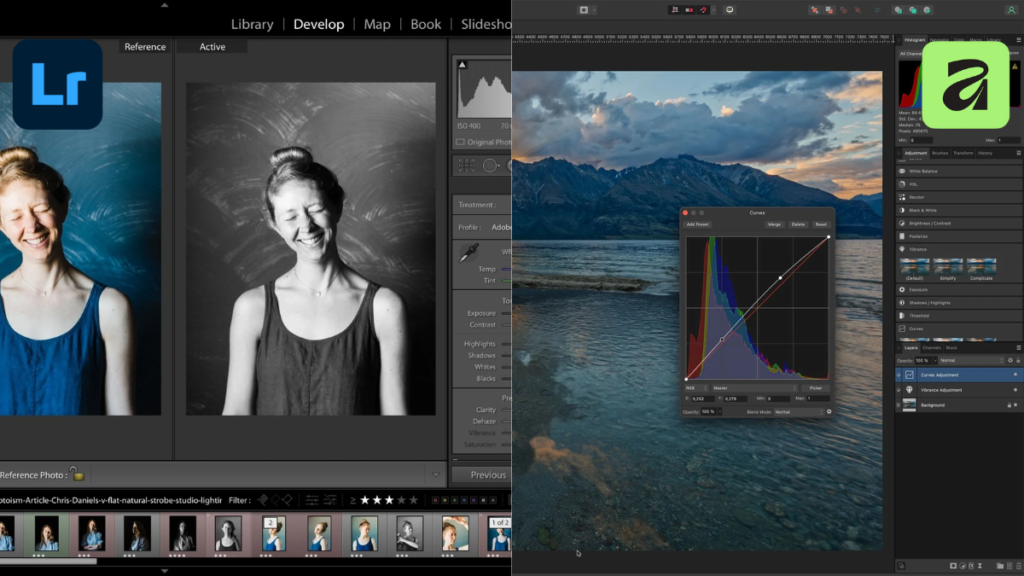
The Affinity Photo 2 vs Lightroom interface debate centers on workflow philosophy rather than capability.
Lightroom employs a module-based interface divided into Library, Develop, Map, and Print sections. Consequently, this design streamlines the photo editing workflow for efficiency and speed. The preset system enables consistent looks across multiple shoots. Additionally, AI-powered masking tools now automate subject selection and sky replacement. Local adjustments through brushes and gradients provide targeted control without complexity. Users seeking additional capabilities can explore best plugins for Lightroom to extend functionality.
Affinity Photo 2 implements a persona-based system including Photo, Liquify, Develop, Tone Mapping, and Export modes. Similarly to Photoshop, it features a comprehensive layer system enabling non-destructive editing workflows. Real-time adjustment layers preview changes instantly without committing to modifications. Furthermore, live blend modes and effects allow creative experimentation. Advanced selection and masking tools rival professional-grade applications. Those exploring free photo editing websites will find Affinity’s depth exceeds most alternatives.
Photo Organization & Management
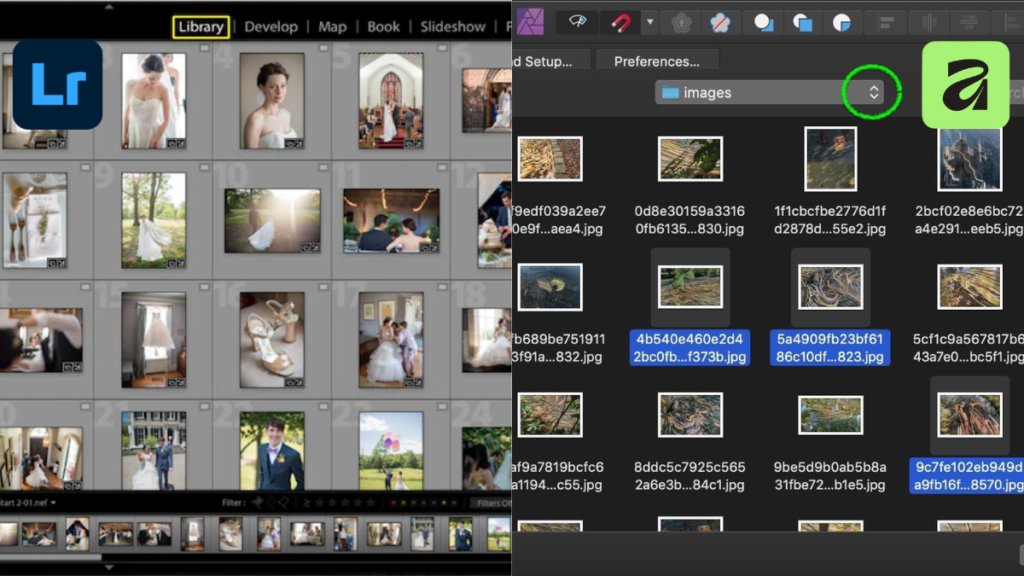
This category highlights the most significant difference when comparing Affinity Photo 2 vs Lightroom.
Lightroom includes a built-in photo cataloging system that manages thousands of images efficiently. Collections, smart collections, and folder structures organize photos logically. Additionally, keyword tagging, star ratings, flags, and color labels enable fast sorting. GPS location metadata groups photos by shooting location automatically. Moreover, facial recognition identifies people across your entire library. Side-by-side comparison tools help select the best shots from sequences. Comprehensive search functionality finds images by any metadata criterion.
Affinity Photo 2 completely lacks a built-in DAM (Digital Asset Management) system. Instead, users must rely on third-party solutions like ACDSee, Photo Mechanic, or standard file browsers. Consequently, image organization requires separate software or manual folder management. Browser-based file access provides basic navigation but no cataloging features.
Batch Processing & Workflow Efficiency
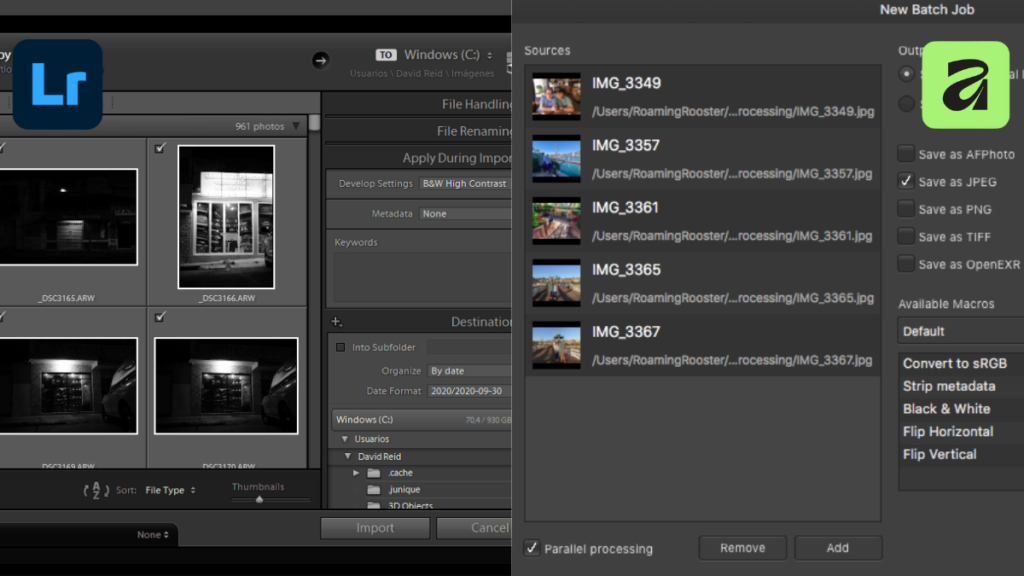
Lightroom synchronizes settings across multiple photos with a single click. Similarly, copy and paste functions transfer adjustments between images instantly. Auto-sync from camera enables tethered shooting with automatic import. Export presets save time when delivering files to clients repeatedly.
Affinity Photo 2 offers limited batch processing capabilities compared to Lightroom. However, macro recording automates repetitive tasks for efficiency. Unfortunately, no built-in batch export optimization exists for processing hundreds of images simultaneously.
Performance & System Requirements
Performance differences between these professional photo editing software options impact daily productivity significantly.
Hardware Demands
Lightroom requires minimum 4GB RAM, though 8GB is strongly recommended for smooth operation. Additionally, it needs 2GB+ hard drive space for installation alone. Running 17 Adobe processes in the background consumes considerable system resources. Furthermore, cloud sync adds overhead that slows older computers noticeably. Therefore, heavier system requirements may necessitate hardware upgrades.
Affinity Photo 2 runs comfortably with minimum 2GB RAM on most systems. Moreover, installation requires only 670MB storage space. As a native application, it produces less background usage than Lightroom. Consequently, more efficient resource management delivers better performance on mid-range hardware. Users exploring best free AI photo editor options will find Affinity’s efficiency impressive.
Speed & Responsiveness
Import speed varies significantly between platforms during typical workflow sessions in Affinity Photo 2 vs Lightroom comparisons. Specifically, Lightroom catalogs photos during import, which adds processing time initially. However, subsequent access becomes faster due to preview caching. Rendering times depend heavily on catalog size and available RAM. Export performance matches industry standards for JPEG and TIFF generation.
Affinity Photo 2 opens files directly without cataloging overhead. Consequently, initial launch feels faster for individual image editing. GPU acceleration improves rendering speed for complex layer compositions. Cache management differs fundamentally since Affinity doesn’t maintain persistent catalogs.
Platform Availability
Lightroom operates across Windows, Mac, iOS, Android, and web platforms seamlessly. Therefore, cross-device workflow enables editing anywhere with automatic synchronization. Mobile apps provide full editing capabilities, not just preview functions.
Affinity Photo 2 runs on Windows, Mac, and iPad, though each requires separate purchases. Cross-device workflow requires manual file transfers between platforms. Currently, no mobile or web version exists beyond iPad support.
Pricing Models: Affinity Photo 2 vs Lightroom Investment Analysis
Budget considerations heavily influence the Affinity Photo 2 vs Lightroom decision for many professionals.
Adobe Lightroom Pricing
Adobe’s Photography Plan costs $14.99/month and includes both Lightroom and Photoshop. Alternatively, the Lightroom-only Plan runs $11.99/month with 1TB cloud storage included. Annual costs range from $143.88 to $179.88 depending on the plan selected. Consequently, five-year cost projections reach $719.40 to $899.40 for continuous access. Updates remain included indefinitely while subscriptions stay active. However, access immediately ends when subscription payments stop. For comparison, check current Adobe Photoshop premium price details.
Affinity Photo 2 Pricing
Affinity Photo 2 requires a one-time payment of $69.99 for Windows or Mac versions. Additionally, the iPad version costs $18.49 as a separate purchase. The Universal License V2 Bundle including Photo, Designer, and Publisher costs $164.99 total. Moreover, all updates within version 2.x remain free after purchase. Lifetime ownership means permanent access regardless of future payments. Furthermore, occasional promotional discounts offer 50% off during sales events.
Cost-Benefit Analysis
The break-even point occurs after approximately five months of Lightroom subscriptions. Long-term value favors Affinity Photo 2 dramatically over three to five years. Professional photographers spending $179.88 annually on Lightroom could purchase Affinity multiple times over. However, hobbyists shooting occasionally may prefer spreading costs monthly initially.
Hidden costs exist for both platforms beyond base pricing. Lightroom includes cloud storage, eliminating separate backup service costs. Conversely, Affinity Photo 2 users need third-party DAM solutions for proper image organization. Plugin ecosystems for both platforms add optional expenses.
Value Proposition
Lightroom provides continuous updates, ecosystem integration, and ongoing Adobe support. Therefore, subscribers always access the latest features and improvements immediately.
Affinity Photo 2 delivers ownership, eliminates recurring costs, and enables predictable budgeting. Consequently, professionals controlling expenses long-term find this model attractive. Those managing broader creative needs might explore Adobe Creative Cloud Pro for comprehensive access.
Professional Workflow Integration

Real-world photo editing workflow requirements determine which platform serves specific professional needs better.
For Volume Photographers
Wedding and event photographers must process hundreds or even thousands of images efficiently, making speed and organization critical. In the Affinity Photo 2 vs Lightroom comparison, Lightroom clearly excels due to its powerful cataloging, fast culling, rating tools, and seamless export presets for client delivery. Photographers handling multiple events simultaneously benefit greatly from Lightroom’s ability to manage large libraries and maintain consistent workflows, allowing faster turnaround times and smoother project handling.
For Retouching Specialists
Portrait and commercial retouching demand pixel-level precision rather than high-volume processing. In the Affinity Photo 2 vs Lightroom debate, Affinity Photo 2 stands out with its advanced layer-based editing, enabling professional techniques like frequency separation, dodge and burn, and detailed compositing. These workflows suit specialists who edit fewer images with intensive attention. Many professionals combine both tools using Lightroom for organization and Affinity Photo 2 for detailed retouching to achieve optimal results.
Hybrid Workflows
Many professionals use both software together strategically for optimal results. Specifically, Lightroom handles organization and basic edits for entire shoots efficiently. Then, Affinity Photo 2 performs advanced retouching on selected hero images. Export and import considerations remain minimal since both support standard file formats. Furthermore, the cost-effectiveness of this hybrid approach justifies dual software ownership. Commercial studios processing client work often adopt this combined strategy successfully. Additionally, professionals might supplement their workflow with stock image websites for commercial projects requiring additional visual assets.
Integration with Other Tools
Lightroom integrates seamlessly with Photoshop through the “Edit In” command. Additionally, the plugin ecosystem includes Nik Collection, Topaz, and numerous specialized tools. Cloud synchronization across devices maintains consistency everywhere. Professionals creating mockups can combine Lightroom with Freepik mockup templates effectively.
Affinity Photo 2 maintains PSD file compatibility for cross-application workflows. However, the plugin ecosystem remains limited compared to Adobe’s offerings. It works exceptionally well with Affinity Designer and Publisher for integrated creative projects. Manual file management replaces automatic cloud synchronization unfortunately. Those exploring create an image with AI tools can integrate AI-generated elements into Affinity workflows seamlessly.
Learning Curve & Usability
The time required to master each platform differs significantly depending on prior experience, making Affinity Photo 2 vs Lightroom an important comparison for both beginners and professionals.
Ease of Learning
Lightroom presents a steeper initial learning curve but follows logical progression through modules. Meanwhile, Affinity Photo 2 allows Photoshop users to adapt quickly due to similar interfaces. Beginners without Photoshop experience need significant time mastering layer-based workflows. Available learning resources include extensive tutorials, online courses, and active communities for both platforms.
Interface Philosophy
Lightroom emphasizes a clean, streamlined design tailored specifically for photographers. Conversely, Affinity Photo 2 reflects its graphic design roots, resulting in a more complex but highly flexible workspace that suits creative professionals. This distinction highlights the core usability differences in Affinity Photo 2 vs Lightroom.
User Experience for Professionals
Customization options let professionals tailor both applications to specific workflow needs. Keyboard shortcuts accelerate common tasks once memorized properly. Speed of common tasks depends more on familiarity than inherent software limitations. Stability and reliability remain excellent for both platforms in professional production environments.
Key Benefits and Limitations
Adobe Lightroom – Key Benefits
- Powerful photo organization with advanced catalogs and smart collections
- Fast batch editing for weddings, events, and high-volume workflows
- Cloud sync and mobile editing across desktop and mobile devices
- Simple yet precise color correction using sliders and presets
- Regular updates with AI-powered tools and performance improvements
Adobe Lightroom – Limitations
- Subscription-based pricing increases long-term costs
- Higher system requirements slow performance on older computers
- Limited advanced retouching due to lack of layer-based editing
Affinity Photo 2 – Key Benefits
- One-time purchase with no recurring subscription fees
- Advanced layer-based editing for professional retouching and compositing
- Excellent noise reduction and creative tools for detailed edits
- Lightweight performance suitable for mid-range and older hardware
Affinity Photo 2 – Limitations
- No built-in photo organization or catalog management
- Limited batch processing for large image libraries
- No cloud sync or mobile editing support
Conclusion
Both Affinity Photo 2 and Lightroom are excellent professional tools designed to serve different creative priorities. The key distinction in Affinity Photo 2 vs Lightroom lies in their pricing models one-time purchase versus subscription which directly impacts long-term value. Likewise, the presence or absence of built-in digital asset management (DAM) plays a major role in determining suitability for photographers handling large volumes of images.
By clearly understanding these differences, professionals can make smarter choices based on real workflow requirements rather than marketing claims. Investing time to learn either tool will pay off throughout your creative career. When evaluating Affinity Photo 2 vs Lightroom, it’s highly recommended to test both using their free trials seven days for Lightroom and 30 days for Affinity Photo 2 so your final decision is based on hands-on experience with real projects, not just theoretical comparisons.

Leave a Reply