So, you’ve got a WordPress site, but it looks like your cousin’s first blog from 2012 needs to be upgraded! Enter the Envato Elements plugin for WordPress, your new best friend for building websites that don’t scream “I made this in 10 minutes.” With this plugin, you get instant access to thousands of templates, blocks, themes, and royalty-free stock photos, all inside your dashboard. No more hunting for images or struggling with boring layouts.
Whether you’re a beginner or a pro, the Envato Elements plugin for WordPress makes design a breeze, even if your only skill is clicking buttons. Say goodbye to “meh” sites and hello to professional, stunning pages, no coding, no stress, just drag, drop, and done. Ready to turn your website from “meh” to “wow”? Let’s dive in and make your site the envy of the internet!
What Is Envato Elements Plugin for WordPress?
The Envato Elements plugin for WordPress is a tool that connects your WordPress site directly to the massive Envato Elements library. This means you can import templates, images, blocks, themes, and more without ever leaving your WordPress admin panel. The plugin supports a wide range of assets, including Elementor templates, Gutenberg blocks, stock photos, and even full website kits designed for specific industries.
With the Envato Elements plugin for WordPress, you can choose between free and premium features. Free users get access to a selection of templates and images, while subscribers unlock thousands of premium assets and unlimited downloads. This flexibility makes it perfect for anyone, from hobbyists to agencies.
Key Features of Envato Elements Plugin
The key features of Envanto Elements are:
- Direct Access to Templates: Browse and import templates for Elementor and Gutenberg right inside WordPress. No more switching tabs or uploading files manually.
- Ready-to-Import Website Kits: Get complete website kits that include pages, layouts, and even sample content. Just pick your favorite kit, import it, and customize as needed.
- Royalty-Free Stock Photos: Access millions of high-quality, royalty-free photos directly from the plugin. Perfect for blogs, portfolios, and e-commerce sites.
- Drag-and-Drop Page Builder Support: Works seamlessly with popular page builders like Elementor and Gutenberg. You don’t need to know any code to use these features.
- No Coding Required: Everything is designed for beginners and experts alike. Just drag, drop, and edit to make your site look exactly how you want.
Requirements Before Installation
Before you install the Envato Elements plugin for WordPress, make sure your site meets a few basic requirements:
- WordPress version 5.0 or higher (Gutenberg support is best for full feature access).
- For template kits, Elementor or Gutenberg page builder is recommended (though not always required).
- Reliable hosting with enough memory and PHP support (most standard WordPress hosts will work fine).
No special technical skills are needed, just a working WordPress site and an internet connection.
How to Install the Envato Elements Plugin on WordPress (Step-by-Step Guide)
The Envato Elements plugin is a game-changer for WordPress users, giving you seamless access to millions of premium assets like stock photos, videos, templates, and graphics directly from your dashboard. It’s free to install and works with any active Envato Elements subscription. This makes it especially useful for entrepreneurs and creators searching for the best website templates for small business, without the need to hire designers or developers. Follow this detailed, beginner-friendly guide to get it up and running in under 5 minutes no coding required.
Step 1: Install the Plugin from the WordPress Directory
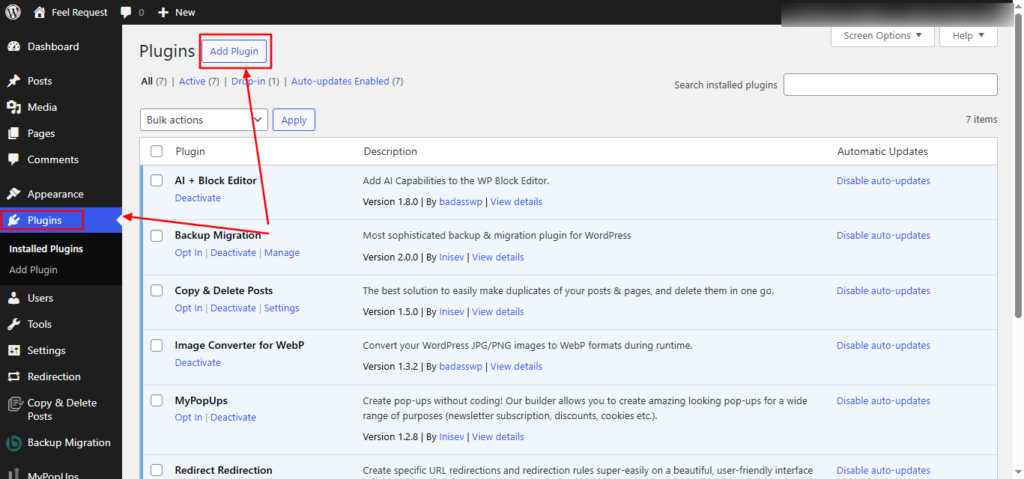
The easiest way to add the Envato Elements plugin is straight from your WordPress admin panel, as it’s officially available in the plugin repository.
- Log in to your WordPress dashboard: Open your browser, navigate to yourwebsite.com/wp-admin, and enter your admin credentials. (Pro tip: Enable two-factor authentication for security.)
- Navigate to Plugins: In the left sidebar, click Plugins > Add New. This opens the plugin search and installation page.
- Search for the plugin: Type “Envato Elements” into the search bar. Look for the official plugin by Envato (it has a blue logo and high ratings over 4.9 stars from thousands of users).
- Install and activate: Click Install Now on the plugin card. Wait for the process to complete (usually 10-20 seconds), then hit Activate. If the install fails, ensure your WordPress is updated (version 5.0+ required) and check your server’s PHP version (7.4+ recommended). Clear any caching plugins temporarily.
Step 2: Sign In or Create an Envato Account

Once activated, the plugin adds a new menu item to your dashboard: Envato Elements. A welcome notice will prompt you to connect your account right away.
- Access the plugin settings: Go to Envato Elements in your sidebar. You’ll see an authorization screen.
- Connect your existing account:
- Click Connect to Envato.
- You’ll be redirected to Envato’s login page. Enter your credentials for an active Elements subscription.
- Authorize the connection grant permissions for the plugin to access your library.
- New to Envato? Sign up quickly:
- No subscription? Click the sign-up link to create a free Envato account.
- For full access, subscribe to Envato Elements (plans start at $16.50/month with unlimited downloads).
- Return to WordPress, paste your API token if prompted (found in your Envato profile under Integrations), or complete the OAuth flow.
- Success indicator: You’ll see your subscription status, download credits, and a search bar for assets. Test it by searching for “WordPress template” to pull in previews.
Step 3: Verify Installation and Start Using Assets
- Refresh your dashboard and confirm the plugin shows your library stats.
- Browse categories like Photos, Graphics, or Templates directly in WordPress.
- Download items with one click they save to your Media Library for easy use in posts, pages, or themes.
Common issues and fixes:
- Connection error: Revoke access in Envato settings and reconnect.
- No assets showing: Ensure your subscription is active and not expired.
- Compatibility: Works with Gutenberg, Classic Editor, and most page builders like Elementor.
With the plugin installed, you’re ready to supercharge your site’s visuals without leaving WordPress. This setup saves hours compared to manual downloads from Envato’s site.
How to Use the Envato Elements Plugin?
Import Website Kits
- Once connected, go to the Envato Elements tab in your WordPress dashboard.
- Browse the available website kits (templates for specific niches).
- Choose a kit and click Import.
- The plugin will install all necessary pages, layouts, and sample content. You can then replace images, text, and colors to match your brand.
Use Template Blocks with Elementor/Gutenberg
- In your page editor (Elementor or Gutenberg), look for the Envato Elements icon.
- Drag and drop blocks or templates directly onto your page.
- Customize the content, colors, and fonts to fit your needs. No coding required.
Use Stock Photos from the Plugin
- Open the Envato Elements media library inside WordPress.
- Search for images using keywords (e.g., “business,” “nature,” “technology”).
- Insert photos directly into your posts or pages.
- All photos are royalty-free, so you can use them for commercial projects without worry.
Tips to Maximize the Plugin
- Customize Typography & Colors: Use the built-in options to match your brand’s style. This makes your site look professional and unique.
- Use High-Quality Stock Visuals: The Envato Elements plugin for WordPress gives you access to millions of premium images, so take advantage of them for blogs, portfolios, and marketing materials.
- Combine with Cache Plugins: For faster loading times, pair the Envato Elements plugin with a caching plugin like WP Super Cache or W3 Total Cache.
Common Issues & Troubleshooting
- Import Errors: Sometimes, templates or kits may not import correctly. Try clearing your cache, updating plugins, or re-importing the kit.
- Cache or Memory Issues: If your site is slow or templates don’t load, increase your PHP memory limit or use a caching plugin.
- Plugin Conflicts: If you notice issues after installing the Envato Elements plugin for WordPress, deactivate other plugins one by one to find the culprit.
Pricing: Do You Need a Paid Subscription?
The Envato Elements plugin for WordPress offers both a free version and a paid subscription, making it flexible for different types of users. The free version lets you access basic templates and a limited selection of assets, which is perfect if you just want to try things out or only need occasional design resources. However, upgrading to a paid subscription unlocks unlimited downloads of templates, photos, fonts, and access to premium website kits with advanced features.
You’ll also get regular updates and new content added to your library, keeping your site fresh and up to date. For professionals, agencies, or anyone who regularly builds websites, the paid plan is definitely worth the investment because it saves time and expands your creative options. Even casual users might find value in upgrading if they want more design freedom or need a wider range of visuals and layouts for their projects.
Final Thoughts
So there you have it, the Envato Elements plugin for WordPress is like having a magic wand for your website. Whether you’re building a blog, an online store, or just sprucing up your portfolio, this plugin makes design fast, easy, and fun. No more endless searching for templates or stressing over layoutseverything you need is right inside your dashboard. With unlimited downloads, premium kits, and royalty-free assets, you can easily access some of the best envato wordpress themes and design resources in one place. This allows you to create professional sites that actually look like you didn’t spend all night Googling “how to make a website.”
Whether you’re a beginner or a seasoned pro, the Envato Elements plugin for WordPress saves you time, effort, and a few headaches. So why wait? Give it a try, play around with the templates, and watch your site go from basic to brilliant in no time. Happy designing!