
Picture this: A customer clicks on a link to your best-selling product. Instead of landing on your product page, they hit a frustrating 404 error. Consequently, they leave your store and never return. This scenario happens more often than you think, especially when Shopify redirect not working issues go unnoticed.
Broken redirects silently damage your business in multiple ways. First, they hurt your SEO rankings as search engines encounter crawl errors. Second, they create a poor user experience that increases bounce rates. Moreover, they cause revenue loss from broken customer journeys. Therefore, understanding why Shopify redirect not working problems occur becomes crucial for your store’s success. In this guide, you’ll discover exactly why your redirects fail and how to fix them quickly.
What Are Shopify Redirects?
Shopify redirects are essentially pathways that guide visitors from old URLs to new ones. Specifically, 301 redirects signal a permanent move to search engines. Furthermore, they preserve your SEO value and ensure customers reach the right page.
The Shopify platform automatically handles some redirects. However, you need to create manual redirects when deleting products or changing URLs. Additionally, redirects become essential during store migrations. They prevent visitors from hitting dead ends. Instead, they experience smooth navigation throughout your store.
The Impact of Broken Redirects on Your Store
Broken redirects create significant SEO consequences for your online store. Search engines mark your pages with crawl errors, which subsequently damages your rankings. Moreover, these errors signal poor site maintenance to Google.
User experience suffers dramatically from redirect failures. Customers encounter 404 errors instead of products they’re searching for. As a result, bounce rates skyrocket and conversions plummet. Even worse, you lose valuable link equity from external sites. When fixing Shopify SEO issues, redirect management should be your top priority. Check out the best seo app for shopify.

Common Reason #1 : The Source URL Is Still Active

Understanding the Active Page Problem
Here’s a critical fact: Shopify only creates redirects from broken or 404 URLs. Therefore, if your source page remains live, your redirect simply won’t work. This limitation catches many store owners off guard. Understanding this prevents the most common Shopify redirect not working scenario.
Consider this common scenario: You want to redirect an old product to a new one. However, the old product page is still active and accessible. Consequently, visitors keep landing on the outdated page. Meanwhile, your redirect sits there doing nothing because Shopify ignores active pages.
Step-by-Step Fix:
- First, verify whether your source page is still accessible. Simply type the full URL into your browser. If the page loads normally, that’s your problem right there.
- Next, you need to delete or archive the original page completely. Navigate to your product or page in Shopify admin. Then, click the delete button to remove it permanently. Alternatively, you can unpublish it first.
- After that, wait a few minutes for the page to return a 404 error. Test the URL again to confirm it’s truly broken. Only then should you create your redirect in Shopify admin.
- Finally, test the redirect thoroughly. Click the old URL and verify it takes you to the correct destination. Additionally, check it from different devices and browsers.
Pro Tip: Understanding draft status versus deletion helps you manage redirects better. Use draft status when you might republish the page later. However, choose deletion when the content is permanently gone.
Before creating any redirect, always verify 404 status first. Open an incognito window and test the URL. This simple check saves you from troubleshooting later.
Common Reason #2: Shopify Redirect Not Working Due to Restricted URL Paths

Fixed Shopify Paths and Prefixes You Cannot Redirect
Shopify restricts certain URL paths to protect core functionality. Therefore, you cannot create redirects for specific prefixes. These blocked prefixes include /apps, /application, /cart, /carts, /orders, /services, and /shop. This is another reason why Shopify redirect not working issues occur.
Additionally, fixed paths like /products, /collections, and /collections/all are off-limits. Collection tag filtering URLs also fall under this restriction. Shopify needs these paths for essential platform operations.
Attempting to redirect these URLs results in automatic rejection. Moreover, the system won’t even let you save the redirect. This frustrates many store owners initially.
The Solution:
These restrictions exist because Shopify uses these paths for critical functions. Consequently, redirecting them would break your store’s core features. The checkout process, cart functionality, and admin access all depend on these protected paths.
Instead of fighting these limitations, consider alternative approaches. For instance, theme customization can achieve similar results. Furthermore, certain Shopify apps offer workarounds for specific scenarios. If you are looking for best apps for dropshipping.
Sometimes, you simply need to accept these limitations. Focus your energy on redirects that actually work. Meanwhile, communicate URL changes clearly to your customers through other channels.
Common Reason #3: Typos and Formatting Errors in Redirect URLs
The Small Mistakes That Break Everything
Typos in redirect URLs cause immediate failures. A single misspelled character makes your entire redirect useless. Moreover, these errors are incredibly easy to miss during setup. Even experienced store owners face Shopify redirect not working problems due to simple typos.
Missing forward slashes represent another common culprit. For example, “products/item” differs from “/products/item” in Shopify’s system. Additionally, incorrect URL structure confuses the platform completely.
Capitalization matters more than you might think. Similarly, trailing slashes can cause unexpected behavior. Therefore, attention to detail becomes absolutely critical.
How to Fix URL Formatting Issues:
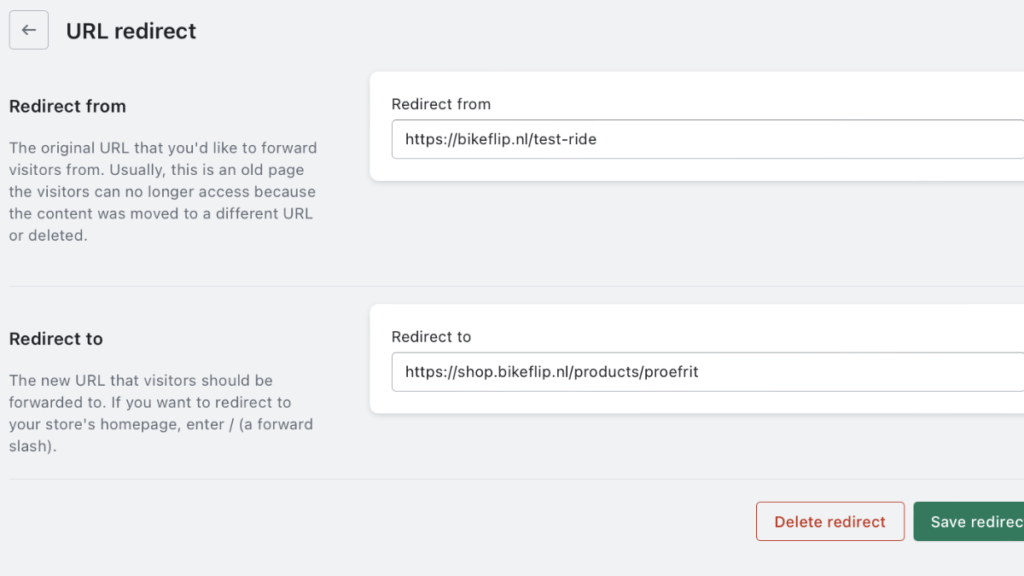
Start by double-checking both “Redirect from” and “Redirect to” fields carefully. Read each character slowly. Then, read them again even more carefully.
Before creating the redirect, test your target URL in a browser. Make sure it loads correctly. Subsequently, copy the exact URL instead of typing it manually.
For internal redirects, use relative URLs like /products/item consistently. However, external redirects require absolute URLs like https://example.com. Never mix these formats.
Watch for capitalization differences between your URLs. Also, decide whether to include trailing slashes consistently. When you build a website on Shopify, establish URL formatting standards early.
Common Reason #4: Duplicate or Conflicting Redirects
When Redirects Clash
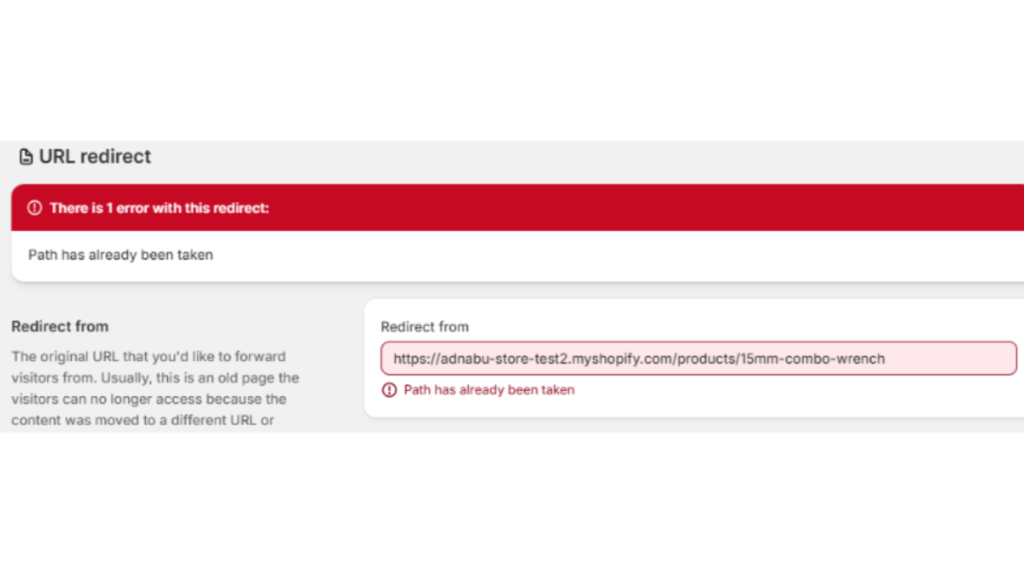
Shopify doesn’t allow duplicate source URLs under any circumstances. Consequently, attempting to create a duplicate generates an error. Specifically, you’ll see “Path has already been taken” notification. This causes frustrating Shopify redirect not working situations.
Redirect chains create another problematic scenario. For instance, URL A redirects to B, which redirects to C. This chain slows down page loading significantly. Furthermore, it confuses search engines unnecessarily.
Redirect loops represent the worst-case scenario. Imagine URL A redirecting to B, which redirects back to A. This creates an infinite loop that breaks functionality completely.
Finding and Fixing Duplicate Redirects:
Navigate to Shopify Admin→ Content→ Menus→ URL Redirects. This path takes you to your redirect management area. Once there, use the search function extensively.
Search for your source URL before creating new redirects. This prevents duplicate errors immediately. If duplicates exist already, edit or delete the conflicting rules.
Next, audit your redirects for chains carefully. Look for patterns like A→B→C throughout your list. Then, simplify them to direct redirects like A→C instead.
Create a spreadsheet documenting all your redirects. Include source URLs, target URLs, and creation dates. This organization prevents future conflicts significantly.
Common Reason #5: Third-Party App Conflicts

Apps That Interfere with Redirects
Certain Shopify apps interfere with redirect functionality unexpectedly. Geolocation apps often override your manual redirects completely. They redirect visitors based on their location instead. This creates mysterious Shopify redirect not working cases.
Checkout customization apps sometimes block redirect rules. Similarly, pop-up and marketing apps can intercept navigation. Language and currency switchers also modify URL behavior significantly.
These apps prioritize their functionality over your redirects. Consequently, your carefully configured redirects simply stop working. Meanwhile, you’re left wondering what went wrong.
Troubleshooting App Conflicts:
Start by disabling apps one by one systematically. This process helps identify the problematic app. After each disable, test your redirects immediately.
Continue until you identify the culprit causing issues. Once found, check the app’s settings for redirect options. Many apps include navigation or redirect features you can adjust.
If settings don’t resolve the issue, contact the app developer directly. Explain your redirect problem clearly. Most developers provide helpful support quickly.
Finally, consider switching to alternative apps if necessary. Research best payment provider for shopify and other tools that don’t interfere. Sometimes, choosing compatible apps prevents headaches entirely.
Common Reason #6: Browser Cache Issues

When Your Browser Lies to You
Browser cache stores old redirect information persistently. Therefore, your browser shows outdated redirect behavior even after fixes. This creates false negatives during testing. Many merchants waste hours troubleshooting when Shopify redirect not working is actually just a cache issue.
Testing on the same device amplifies this problem. Your browser remembers the old redirect path. Consequently, you think your fix didn’t work. However, the redirect actually works fine for new visitors.
Quick Cache Solutions:
Clear your browser cache completely before testing redirects. In Chrome, press Ctrl+Shift+Delete (Cmd+Shift+Delete on Mac). Then select “Cached images and files” and clear.
For Safari users, go to Preferences→ Advanced. Enable “Show Develop menu” first. Then, click Develop and select “Empty Caches.“
Alternatively, test in incognito or private browsing mode. This bypasses cache issues completely. Additionally, try different browsers like Firefox or Edge.
Online redirect checker tools provide unbiased results. They don’t use cached data. Therefore, they show you exactly what new visitors experience. This helps when troubleshooting Shopify 404 errors comprehensively. Check this to speed up shopify website.
Common Reason #7: Query Strings and Special Characters

The Hidden Complexity
URLs with query strings behave differently in Shopify. The platform sometimes ignores query strings during redirects. Consequently, your redirect might fail unexpectedly. This technical quirk explains some perplexing Shopify redirect not working errors.
Special characters within URLs cause additional complications. Characters like &, %, and # need special handling. Furthermore, spaces and other symbols break redirects entirely.
URLs ending in .html extensions present another challenge. Shopify handles these differently than standard URLs. Therefore, they require specific redirect configurations.
Handling Special Cases:
Shopify treats query strings as optional by default. Therefore, create redirects for the base URL without parameters. Then, test with various query string combinations.
Use URL encoding for special characters when necessary. Replace spaces with %20, for example. Additionally, encode ampersands as %26 in URLs.
For .html URLs, create exact matches in your redirects. Include the .html extension in both source and destination. Test these redirects thoroughly before deploying.
When dealing with complex redirects, test extensively first. Try different parameter combinations. Moreover, verify behavior across multiple browsers consistently.
How to Create Shopify Redirects the Right Way
Step-by-Step Redirect Creation Process
- Access your Shopify Admin dashboard first. Then, navigate to the Online Store in the left menu. Next, click Navigation to expand options.
- Click “View URL Redirects” to open the management interface. This shows all your existing redirects. Then, click the “Create URL redirect” button prominently.
- Enter your source URL without the domain name. For example, use /old-product instead of yourstorecom/old-product. Similarly, enter your target URL carefully.
- Double-check both fields for accuracy. Then, click Save to create the redirect. Finally, test it immediately by visiting the old URL.
Best Practices for Redirect Management:
Create redirects immediately after deleting pages or products. Don’t wait days or weeks. This prevents any traffic loss completely. Acting quickly eliminates most Shopify redirect not working scenarios.
Document every redirect in a spreadsheet meticulously. Include source URLs, target URLs, creation dates, and reasons. This documentation proves invaluable later.
Use Shopify’s bulk import feature for multiple redirects. Prepare a CSV file with your redirect data. Then, upload it all at once efficiently.
Always test before and after implementation. Click each redirect manually. Additionally, verify they work on mobile devices. When managing shopify abandoned checkout, proper redirects ensure customers return successfully.
Testing and Monitoring Your Shopify Redirects
Essential Testing Steps
Manual testing remains the most reliable method. Click every redirect yourself. Verify it leads to the correct destination every time. This hands-on approach catches Shopify redirect not working issues immediately.
Google Search Console reveals crawl errors automatically. Check your Coverage report regularly. It highlights broken redirects search engines discover.
Monitor 404 reports in Shopify Analytics consistently. Navigate to Reports, then Behavior. Look for 404 error patterns systematically.
Online redirect checker tools provide additional verification. Tools like Redirect Checker and HTTP Status show exact redirect behavior. Use these for complex troubleshooting sessions.
Ongoing Maintenance
Schedule regular redirect audits monthly at minimum. Review all redirects systematically. Remove outdated ones that no longer serve purposes.
Check redirect reports for unusual patterns. High 404 counts signal problems. Similarly, slow redirects indicate chains needing simplification.
Clean up unnecessary redirects periodically. Old redirects accumulate over time. Therefore, delete ones pointing to deleted destinations.
Update redirects as your store evolves naturally. Product catalogs change constantly. Consequently, your redirect strategy must adapt accordingly. For shopify print-on-demand stores, seasonal redirects require extra attention.
When to Use Shopify Redirect Apps
Shopify redirect apps become valuable for bulk redirect management. They handle hundreds of redirects simultaneously. This saves tremendous time compared to manual creation. Apps also help diagnose complex Shopify redirect not working problems.
Advanced redirect rules require app functionality often. For instance, wildcard redirects and regex patterns. Native Shopify redirects don’t support these features.
Some apps offer automatic redirect creation. They detect deleted pages automatically. Then, they create redirects to similar products instantly.
Popular apps include Redirect Manager and Easy Redirects. Additionally, Bulk Redirects handles large-scale migrations. However, evaluate whether native Shopify redirects suffice first.
For most stores, native redirects work perfectly fine. They’re free and reliable for basic needs. Therefore, start there before investing in apps. Similarly, optimize your email marketing with best email marketing app for shopify before adding complex redirect tools.
Conclusion
Shopify redirect not working issues stem from seven common mistakes. Active source URLs, restricted paths, typos, duplicates, app conflicts, cache issues, and special characters cause most problems. Understanding these causes helps you fix Shopify redirects quickly. Prevention beats troubleshooting every time. Create redirects immediately when changing URLs. Test thoroughly before considering the job complete. Moreover, audit your redirects monthly to catch issues early.
Regular redirect maintenance protects your SEO rankings significantly. It ensures customers always reach their intended destinations. Consequently, you maintain smooth user experiences throughout your store. Start implementing these fixes today. Your traffic and sales will thank you.
Ready to build a successful online store with proper redirect management? Start your Shopify store today and implement these best practices from day one. Shopify’s robust platform makes Shopify redirect troubleshooting straightforward when you know what to look for.