Canva Free, Canva Pro (individual), and Canva Teams here’s what they cost in 2026 and who they’re best for. Whether you’re a solo creator, a small business, or a big agency, Canva offers a plan that fits your needs and budget. The canva subscription cost varies by region and plan, but the core structure remains simple: Free for basic use, Pro for individuals who want more tools, and Teams for businesses needing collaboration and brand control.
This article breaks down the latest pricing for monthly, annual, and team plans, explains recent changes (especially the big 2024–2026 price hikes for Teams), and gives practical advice on which plan to choose. We’ll also cover discounts, FAQs, and alternatives, so you can decide what works best for your workflow and budget.
Canva Subscription Cost: Quick Comparison
Here’s a quick look at the current canva subscription cost for 2026, based on official Canva pricing and recent updates.
| Plan | Monthly Price (INR) | Annual Price / Effective Monthly | Minimum Users | Key Features |
| Free | ₹0 | ₹0 | 1 | Basic templates, limited storage, simple designs |
| Pro (Individual) | ₹500 | ₹4000 / ₹333.3 | 1 | 1TB storage, brand kits, AI tools, Magic Resize, background remover |
| Teams | ₹650 (up to 5 users) | ₹6500 (up to 5 users) / ₹541 | 3 | Team workflows, brand controls, approval features, per-user pricing |
| Enterprise | Custom | Custom | Custom | Advanced admin, custom branding, API access |
Note: Prices may vary by region (e.g., India: ₹500/month Pro, ₹650/user/month Teams; UK: £10.99/month Pro, £10/user/month Teams).
What Changed Recently (2024–2026)
Canva’s pricing has shifted significantly since 2024, especially for Teams plans. The most notable change is the sharp increase in Canva Subscription Cost for many users; the annual price jumped from $119.99 to $500 for a small team, though a 40% first-year discount is often applied. This spike stems mainly from Canva’s expansion of AI-powered features like Magic Studio and the shift to a per-user pricing model for Teams.
If you’re a Teams admin, check your billing emails and you may be moved to per-user pricing, which means costs scale with team size. This change impacts small businesses and agencies the most, as the old flat-rate model is largely gone. The price hike reflects Canva’s investment in AI and collaborative tools, but it also means teams need to budget more carefully in 2026.
Deep Dive: Plan-by-Plan
Canva Free: Is It Enough?
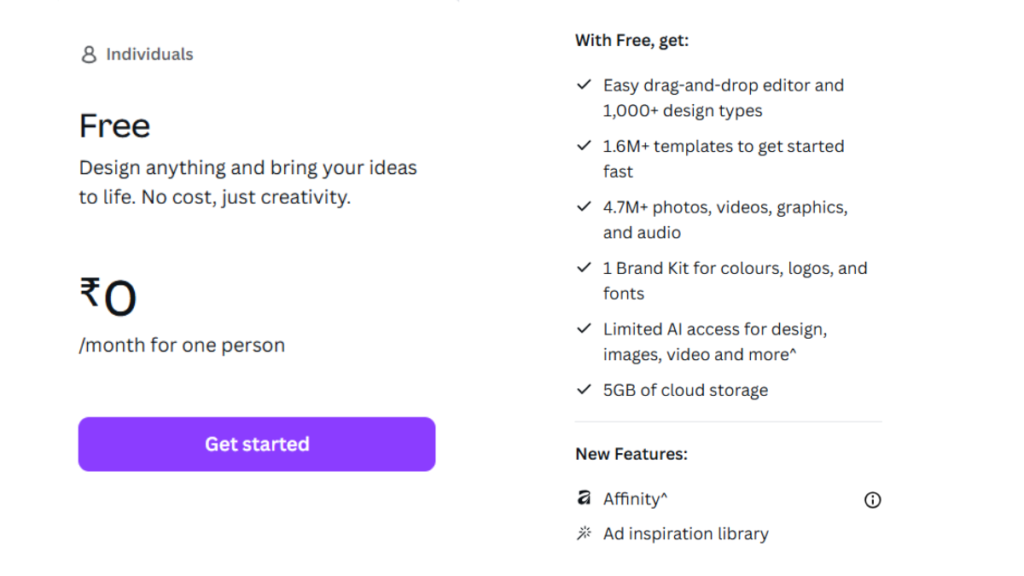
The free plan is perfect for beginners or anyone who only needs to make simple designs occasionally. You get access to over 250,000 templates, 200,000 free images, 57,000 graphic elements, 13,000 videos, 1700 free fonts, and 5GB of storage. There are also basic animation effects and soundtracks, plus the ability to invite team members for free collaboration.
The main limits are storage (5GB), lack of premium assets, no brand kits, and no advanced AI tools. If you only need to make social posts or simple graphics, Free is plenty. But if you want to export high-res files, use brand controls, or leverage AI features, you’ll need to upgrade.
Canva Pro Cost: Monthly vs Annual
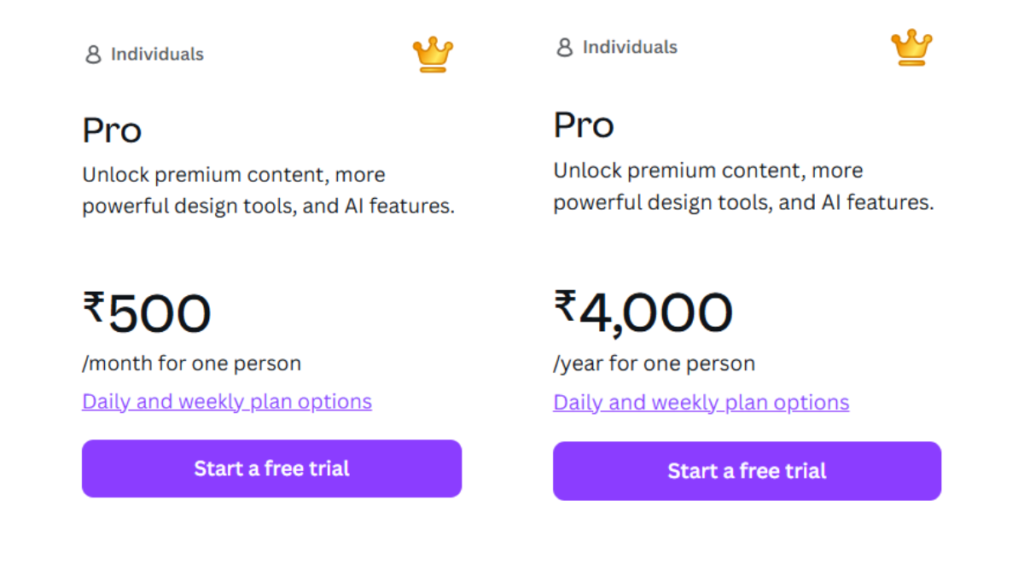
Canva Pro is the go-to plan for solo creators, freelancers, and small businesses. In the US, the Canva Subscription Cost is $12.99/month or $119.99/year (about $10/month when paid annually). In India, it’s ₹500/month or ₹4000/year (about ₹333/month), while UK users pay £15/month or £120/year.
Pro unlocks a ton of value: 1TB storage, unlimited premium templates, access to over 100 million stock images, brand kits, Magic Resize, background remover, advanced AI tools, and more. The annual plan saves you about 23% compared to monthly billing. For example, if you pay monthly, you’ll spend ₹6000/year; if you pay annually, it’s ₹4000 a savings of ₹2000
If you plan to use Canva regularly, the annual plan is a smart choice. Pro is worth it if you need brand consistency, more storage, and access to AI tools.
Canva Subscription Cost for Teams
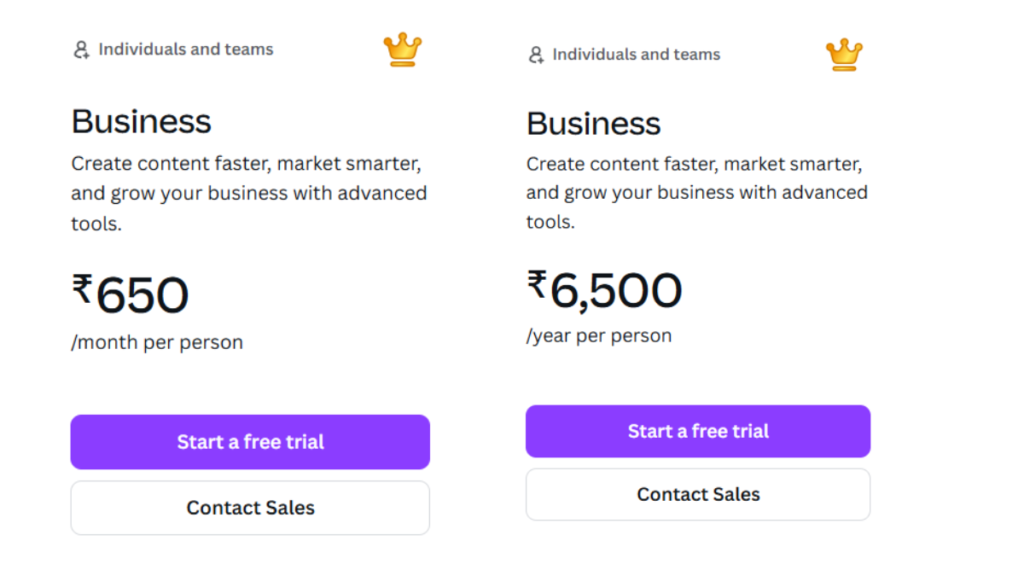
Canva Teams is built for businesses that need collaboration, brand control, and workflow management. The plan is now per-user, with a minimum of three users required. In the US, it’s $14.99/month for up to 5 users, or $149.99/year for the same group (about $12.50/user/month). In India, it’s ₹650/user/month for the first 5 people. UK users pay £10/user/month.
The big change in 2024–2026 is the move from flat-rate to per-user pricing, which means costs scale with team size. For example, a 5-person team now pays $149.99/year, up from $119.99. The price spike is tied to Canva’s new AI features and the need to support more advanced collaboration tools.
Teams makes sense if you need:
- Brand controls (shared brand kits, templates)
- Team workflows (approval processes, shared folders)
- Admin controls (user management, permissions)
If you only need basic collaboration, consider alternatives or stick with Pro. Teams are best for agencies, small businesses, and larger teams that need robust brand management.
Which Plan Should You Choose?
Here’s a quick decision guide for different user types:
- Solo Creator: Canva Free or Pro (if you need more features)
- Freelancer: Canva Pro (annual for savings)
- Small Business: Canva Teams (if you have 3+ people)
- Agency: Canva Teams or Enterprise (for large teams)
- Educator/Nonprofit: Free (with verification)
Decision Rules:
- Need brand control + >3 people → Teams
- Only social posts occasionally → Free or monthly Pro
- Want to save money → Annual Pro
- Large team with admin needs → Enterprise
Additional Features and Perks
Canva’s paid plans don’t just stop at templates and storage. Both Pro and Teams users get access to a range of advanced features that can seriously boost productivity and creativity. For example, Magic Design uses AI to generate stunning visuals based on your text prompts, making it easy to create professional designs in seconds. Magic Expand lets you extend your canvas with smart suggestions, while Magic Media generates images and videos using AI. These tools are perfect for marketers, educators, and anyone who wants to create eye-catching content fast.
Another major perk is the ability to schedule social media posts directly from Canva. You can plan your entire month’s content calendar, preview how your posts will look, and publish them to platforms like Instagram, Facebook, and LinkedIn, all without leaving the app. This is a huge time-saver for social media managers and small business owners.
Hidden Tips and Tricks
Here’s a detailed breakdown of those Canva hidden tips and tricks to help you get the most out of your subscription:
Magic Switch: Instant Style Change
Canva’s Magic Switch feature lets you instantly transform the style of your entire design with just one click. Whether you want to switch from a modern, minimalist look to a vibrant, playful theme, Magic Switch applies new color palettes, fonts, and graphic elements across your project in seconds. This is perfect for quickly exploring different design directions or tailoring your visuals for various audiences or platforms. Just select your design, click Magic Switch, and choose a new style to watch your project get a fresh look instantly.
Present Mode: Interactive Presentations & Pitch Decks
Canva’s Present mode turns your static slides into dynamic, interactive presentations. You can present in full screen, autoplay, or presenter view. Presenter view is especially useful for live talks or webinars, as it shows your audience one screen while giving you a private view with notes and upcoming slides. You can also set up Canva Live, which allows your audience to ask questions, submit comments, and even participate in polls in real time during your presentation. This makes your pitch decks or reports far more engaging and interactive.
Photo Editing Tools: Enhance Images Directly
Canva’s built-in photo editing tools let you tweak and enhance images right inside the app. You can adjust brightness, contrast, saturation and apply filters or effects to make your visuals pop. The background remover tool is a favorite for marketers and designers, letting you instantly remove or change backgrounds. Plus, with Magic Edit, you can use AI to replace or enhance specific parts of your image, like swapping out a background or adding new objects. These tools mean you don’t need to leave Canva to get professional-quality photos.
Animate Feature: Add Motion to Designs
The Animate feature lets you add eye-catching motion to your designs for social media, presentations, or marketing materials. You can animate text, graphics, or entire slides with smooth transitions and effects. For example, make your text fade in, graphics bounce, or backgrounds slide in for a dynamic look. This is a great way to grab attention and make your content more engaging, especially for platforms like Instagram or LinkedIn where motion stands out.
These hidden tricks make Canva much more than just a design tool; they turn it into a creative powerhouse for anyone who wants to make polished, interactive, and engaging content with ease.
Ways to Save on Canva Subscription Cost?
- Pay annually for Pro to save about 23%
- Look for student and nonprofit discounts (Free Pro for verified users)
- Check for promotional offers (Canva sometimes runs limited-time deals)
- Time your upgrade/downgrade around billing cycles
- For large teams, negotiate bulk pricing with Canva Enterprise
Canva’s official help page lists all available discounts and trial options.
Alternatives & When to Switch
If Canva’s price is too high, consider these apps similar to canva:
- Adobe Express/Creative Cloud: More advanced tools, but pricier
- Affinity Designer: One-time purchase, powerful for pro designers (note: Canva acquired some Affinity assets)
- Figma: Great for collaborative design, especially for UI/UX
- Free Stock Sources: Unsplash, Pexels for images
Each has pros and cons, so compare features and pricing before switching.
Conclusion
Canva’s subscription cost in 2026 is straightforward, covering Free for basic use, Pro for individuals, and Teams for collaboration. The biggest change is the per-user pricing for Teams, which especially affects small businesses and agencies. To manage the Canva Subscription Cost effectively, consider paying annually, checking for discounts, and upgrading only when necessary. This approach helps keep your design expenses predictable.
Visit Canva’s official pricing page for your region to confirm the latest details before upgrading. Start with the Free plan to test features, then move to annual Pro if you use it regularly. Teams is the best choice for groups needing shared brand control, streamlined collaboration, and consistent workflows.
FAQ
DailyWebTips Recommends