

Automated WhatsApp messages have become essential for businesses that want to improve communication and deliver faster responses without constant manual effort. Whether you’re a freelancer, small business owner, or managing growing customer inquiries, automation ensures every message is handled promptly and professionally. This guide will help you understand how to send automated WhatsApp messages covering both basic and advanced methods suited for different business needs. From simple auto-replies in the WhatsApp Business App to powerful workflow automation through the WhatsApp Business API, each tool plays a vital role in enhancing customer experience.
You’ll also learn about common use cases, best practices, and real-world examples that show how automation can streamline your operations. By choosing the right approach, you can reduce response delays, stay organized, and maintain consistent communication with ease. This introduction sets the foundation for using automation effectively to strengthen customer relationships and improve overall efficiency.
What Are Automated WhatsApp Messages?
Definition
Automated WhatsApp messages are pre-defined responses that are sent automatically when certain triggers occur. This could include a customer initiating a chat, messaging outside business hours, completing an order, or requesting updates. Instead of manually replying, the system handles the communication instantly.
Why Businesses Use Automation
Businesses rely on WhatsApp marketing automation because it saves time, improves customer experience, and prevents missed messages. Automated responses ensure customers always receive timely replies, even when your team is busy or offline. Automation also increases conversions by sending instant follow-ups, reminders, and personalized prompts. For companies managing large message volumes, automation keeps communication consistent, structured, and easy to scale.
Types of WhatsApp Automation Options
There are two types of WhatsApp Automation Options, which are as follows :
1. WhatsApp Business App (Basic Automation)
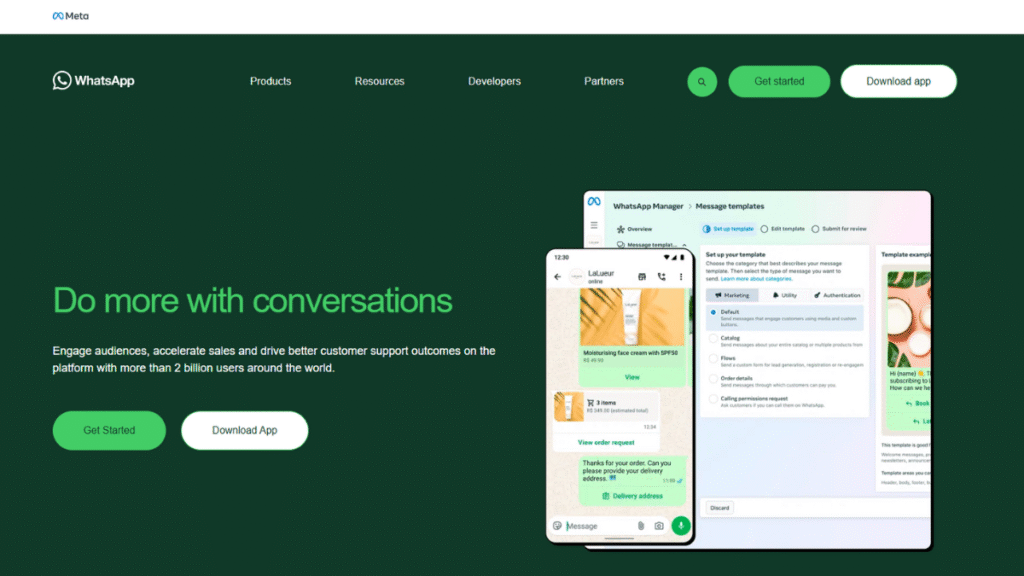
The WhatsApp Business App offers simple automation features suitable for small businesses. You can set up a Greeting Message to welcome new customers when they message for the first time. An Away Message helps you respond automatically during non-working hours or when you’re unavailable. Quick Replies make it easier to respond faster with pre-saved messages for frequently asked questions.
This option is ideal for small businesses, startups, freelancers, and service providers who handle low to medium message volumes and need basic automation without technical setup.
2. WhatsApp Business API (Advanced Automation)
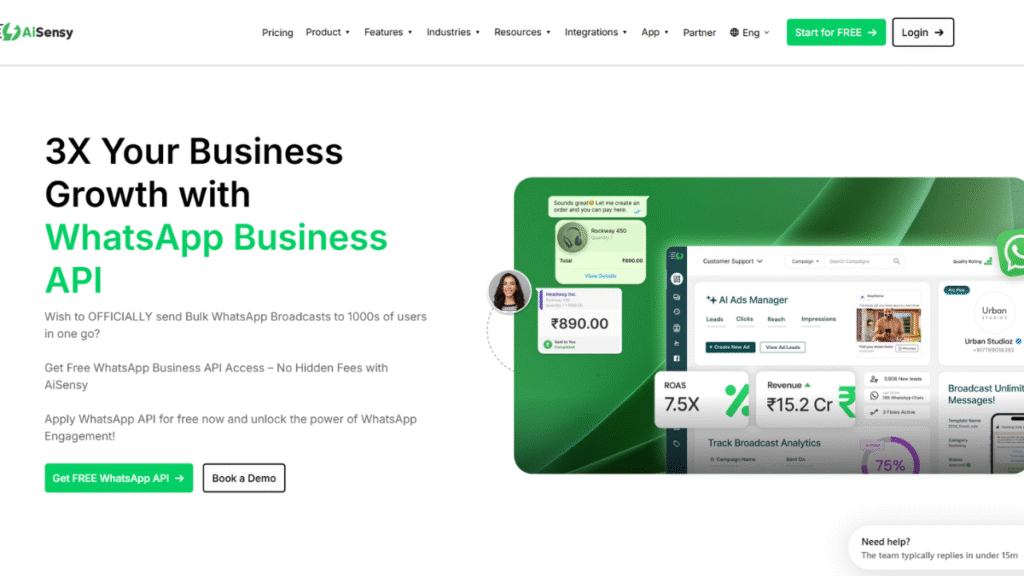
The WhatsApp Business API is a more powerful automation solution suitable for medium to large businesses. It supports auto-responses based on user actions, like purchase confirmations, shipping updates, appointment reminders, and abandoned cart alerts. With API automation, you can integrate WhatsApp with CRM tools, e-commerce platforms, websites, and apps. It also enables advanced features like drip campaigns, bulk broadcasts, segmentation, and workflow triggers.
This option is recommended for businesses that need scalable automation, detailed analytics, personalized campaigns, and integration with business systems.
Common Use Cases for Automated WhatsApp Messages
1. Customer Support: Automation helps businesses greet customers instantly, even if the support team is busy. A greeting or welcome message sets the right tone and collects basic information. Away replies ensure customers still receive responses during non-working hours, reducing frustration and ensuring no inquiry goes unanswered.
2. Order & Booking Notifications: E-commerce stores and service-based businesses use automation to send order confirmations, tracking updates, booking reminders, and payment alerts. This reduces the workload on support teams and keeps customers informed throughout their buying journey.
3. Marketing & Promotions: Brands often automate promotional messages such as product launches, special offers, festive deals, and sale reminders. These automated campaigns help increase engagement and conversions, especially when targeted correctly.
4. Appointment Reminders: Salons, clinics, consultants, tutors, and service providers use WhatsApp automation to send appointment reminders, rescheduling options, and prep instructions. Automated reminders help reduce no-shows and improve customer satisfaction.
5. Feedback & Review Collection: Once an order is delivered or a service is completed, automated follow-up messages help collect feedback. Businesses also use these messages to encourage satisfied customers to leave reviews, improving brand credibility.
How to Send Automatic Messages on WhatsApp (Step-by-Step)
Sending automatic messages on WhatsApp is a powerful way to save time, improve customer engagement, and streamline communication for your business. Here’s a quick step-by-step guide to help you set up WhatsApp automation easily, even if you’re a complete beginner.
A. Using WhatsApp Business App
Step 1: Enable Greeting Message
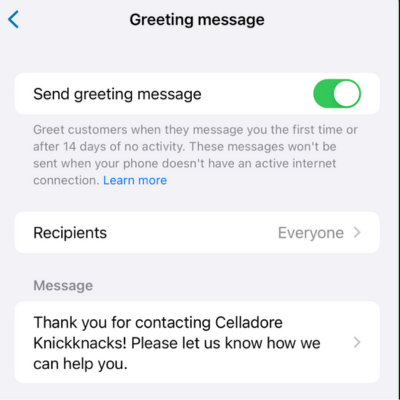
To begin using automation effectively and understand how to send automatic messages on WhatsApp, you need to set up a greeting message inside the WhatsApp Business App.
Navigation Path:
Business Tools → Greeting Message → Edit → Activate
This greeting is automatically delivered whenever a new customer messages you for the first time or reconnects after 14 days of inactivity. It creates a positive first impression and ensures no one feels ignored. When writing your greeting, keep it warm, friendly, and helpful. Introduce your business briefly, mention your services, and guide users on what to do next. This simple form of WhatsApp automation helps you respond instantly even during busy hours, reducing delays and improving customer satisfaction. Automated replies like this are especially useful for small businesses that cannot stay online all the time but still want to maintain fast, reliable communication and build trust with new customers immediately.
Step 2: Set Up Away Message

Away messages help you maintain professionalism even when you’re not available to respond manually.
Navigation Path:
Business Tools → Away Message → Schedule
Using this setting, you can choose when your away message should activate—either during non-working hours, weekends, holidays, or any time you’re offline. This ensures customers always receive automated replies explaining your availability and expected response time. A properly written away message reduces frustration, manages expectations, and reassures users that their inquiry will be handled soon. You can also include useful details like business hours, alternate contacts, or links to FAQs to help them get quick answers. Away messages are an important part of how to send automatic messages on WhatsApp because they prevent missed chats and maintain smooth communication. When customers know exactly when you will reply, trust increases, especially for service-based businesses relying on consistent customer engagement throughout the day.
Step 3: Use Quick Replies for Faster Responses
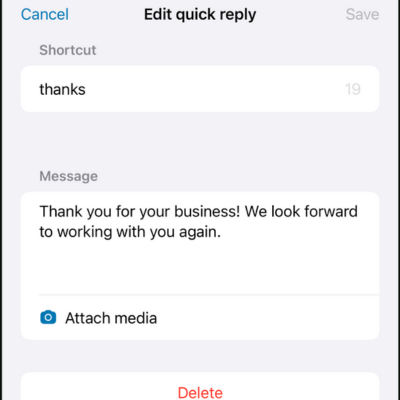
Quick Replies allow you to reply faster to common questions without typing everything manually.
Navigation Path:
Business Tools → Quick Replies → Add Shortcuts
With this feature, you can create pre-saved messages for frequently asked queries like service pricing, working hours, product information, booking instructions, or general FAQs. When chatting with a customer, simply type the shortcut (example: /price or /timings), and the full message instantly appears. This tool improves your workflow, reduces typing time, and keeps your communication consistent. While Quick Replies are not fully automatic WhatsApp messages, they significantly speed up your customer support process. They are especially useful for small and medium businesses that receive repetitive questions throughout the day. Combined with automated replies like greeting and away messages, Quick Replies help you deliver a smooth and efficient customer experience while maintaining professional, accurate, and on-brand communication across every conversation. This feature also supports your overall strategy of how to send automatic messages on WhatsApp more effectively.
B. USING WHATSAPP BUSINESS API
Step 1: Get API Access via a WABA Provider
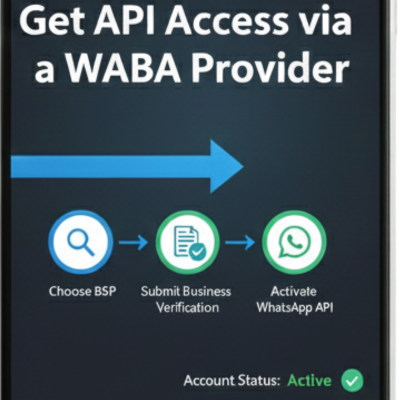
To unlock advanced WhatsApp automation, you must gain access to the WhatsApp Business API.
Process Path:
Choose BSP → Submit Business Verification → Activate WhatsApp API
Start by selecting a reputable WhatsApp Business Solution Provider (BSP). They handle onboarding, verification, setup, and provide you with dashboards and automation tools. After registering, you will complete Facebook Business verification to activate your official WhatsApp Business API account. With API access, you can send automatic WhatsApp messages at scale, including confirmations, alerts, reminders, and support notifications. These capabilities are ideal for medium or large businesses that require deeper system integration, large-scale automated replies, and advanced workflows. Once your API account is active, your BSP gives you access to dashboards, settings, API keys, and template management tools, enabling you to build fully automated messaging systems tailored to your customer journey.
Step 2: Create Message Templates
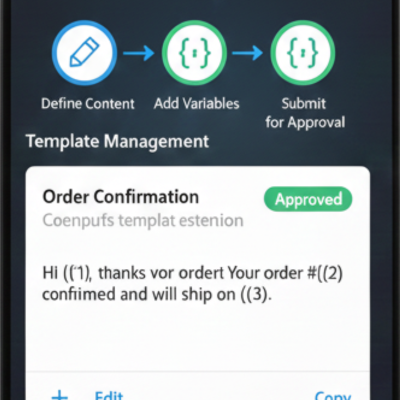
Message templates are essential for sending outbound automated WhatsApp messages via the API.
Navigation Path:
API Dashboard → Templates → Create Template → Add Variables
WhatsApp must approve each template before use, ensuring quality and compliance with platform rules. Templates allow you to add personalization fields such as {{name}}, {{order_id}}, {{tracking_link}}, or {{date}}, helping you deliver relevant and customized automated replies. You can create templates for order confirmations, delivery notifications, appointment reminders, payment updates, or promotional alerts. When writing templates, maintain a helpful, professional tone and avoid overly promotional phrases unless the user has opted in. Once approved, these templates can be connected to CRM triggers, website actions, or e-commerce events. This setup ensures your WhatsApp automation remains smooth, reliable, and fully compliant. High-quality templates lead to better engagement and a stronger customer experience.
Step 3: Build Automated Workflows
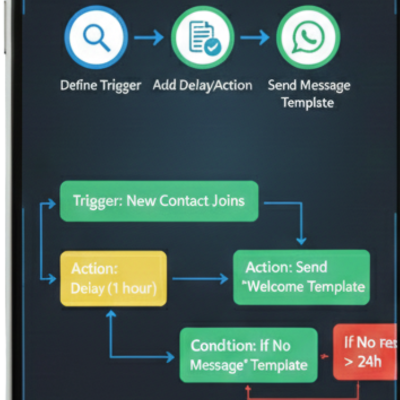
Workflows are the core of advanced WhatsApp automation because they automatically send specific messages based on user behavior.
Navigation Path:
Automation Panel → Create Workflow → Add Trigger → Assign Template
You can design flows for purchase confirmations, abandoned cart reminders, appointment reminders, lead nurturing campaigns, and support follow-ups. Each workflow starts with a trigger, such as a successful order, booking, form submission, or customer inactivity. When the event occurs, the connected template is automatically sent without manual work. Workflows ensure consistent communication, increase conversions, and reduce support load. They also allow you to build multi-step sequences that guide customers through onboarding, after-sales support, or promotional journeys. With automated replies sent at the right moment, customers receive timely information that encourages action and builds trust. Properly structured workflows make your messaging system efficient and impactful.
Step 4: Integrate With CRM / Website / Apps

Integrating your WhatsApp Business API with CRM systems, websites, and apps makes your WhatsApp automation more powerful.
Navigation Path:
API Platform → Integrations → Choose CRM (Shopify/WooCommerce/HubSpot)
When integration is active, customer actions, from purchases to appointment bookings, can trigger instant automated replies. For example, placing an order can automatically send a confirmation message, while scheduling a meeting can trigger a reminder. Integration also allows you to sync customer profiles, track conversations, and centralize communication history. Platforms like Shopify, WooCommerce, Zoho, HubSpot, and booking software can seamlessly connect with the WhatsApp API. This enhances personalization, improves workflow efficiency, and ensures your automatic WhatsApp messages are triggered at the perfect moment. With everything working together, you build a complete automation ecosystem that reduces manual tasks and strengthens customer satisfaction.
Step 5: Test and Optimize Automation
Testing and optimization ensure your WhatsApp automation runs smoothly and delivers the best results.
Process Path:
Test → Check Delivery → Analyze Read Rate → Improve Templates
Start by verifying that workflows trigger correctly and that messages reach the intended audience. Check delivery rates, message accuracy, and timing. Review analytics from your BSP or CRM to evaluate read rates, click-throughs, response times, and conversions. Perform A/B testing by trying different versions of templates to find out which messages perform best. Update templates regularly to keep them clear and relevant. If customers stop responding at a certain point in the workflow, adjust timing or wording. Continuous optimization ensures your automatic WhatsApp messages remain effective, reduce support workload, and improve overall customer satisfaction. Testing also helps you eliminate errors, refine triggers, and maintain a high-quality automated messaging experience that supports everything you’ve learned about how to send automatic messages on WhatsApp.
Conclusion
Adopting automated messaging tools helps businesses respond quickly, stay organized, and deliver a smoother experience across every customer interaction. As covered throughout this guide on how to send automatic messages on WhatsApp, both the WhatsApp Business App and the WhatsApp Business API offer valuable solutions depending on your requirements. Basic features like greeting messages and away replies work well for small businesses, while advanced automation, workflows, and CRM integrations are ideal for brands managing larger message volumes.
The goal is to maintain consistency, reduce workload, and ensure customers always receive timely updates. When combined with personalization, compliance, and clear communication, WhatsApp automation becomes a powerful tool for improving satisfaction and building trust. As your business grows, knowing when to upgrade from the app to the API will help you scale more effectively. With the right strategy in place, automated messaging transforms customer communication into a faster, smarter, and more reliable system.

Leave a Reply