

Creating professional presentations quickly can be a real challenge. Whether you’re an educator rushing to prepare slides for your class, a business professional gearing up for an important meeting, or a creative marketer needing eye-catching visuals, time and design skills often feel limited. This is exactly where Canva PPT Maker shines. It combines ease of use with powerful design capabilities, allowing anyone to create polished, professional slides effortlessly. In this guide, you’ll learn how to use Canva PPT Maker’s standout features to craft presentations that impress and engage your audience.
Whether you’re new to Canva or looking to optimize your workflow, this article covers everything from getting started, exploring essential tools to mastering advanced options. Canva PPT Maker is ideal for professionals, educators, and businesses alike because it balances creative freedom with user-friendly tools, enabling professional-quality outcomes without a steep learning curve.
What is Canva PPT Maker?
Canva PPT Maker is an intuitive, web-based tool designed for creating presentations quickly and easily. Unlike traditional PowerPoint software that requires installation and often involves a steeper learning curve, Canva offers a straightforward drag-and-drop editor accessible from any device with internet connectivity. It takes the design heavy lifting out of the equation by providing a vast library of professionally designed templates, customizable elements, and an extensive graphics collection.
How to Use Canva PPT Maker?
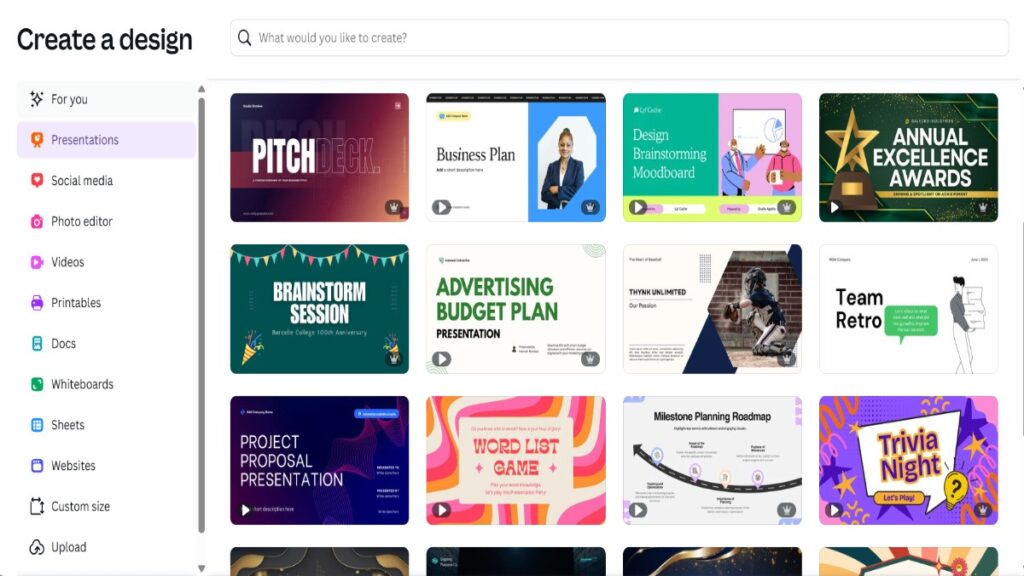
To use Canva PPT Maker, start by creating a free account on the Canva website. Signing up is quick and can be done with an email address or social media login. Once logged in, you’ll land on the Canva dashboard, your home base for all design projects.
From the dashboard, find the presentation section by searching “Presentation” or selecting it from the design options. Canva offers numerous templates tailored to different industries, presentation purposes, and styles. You can start with a blank presentation if you prefer full creative control, or pick a pre-designed template to save time.
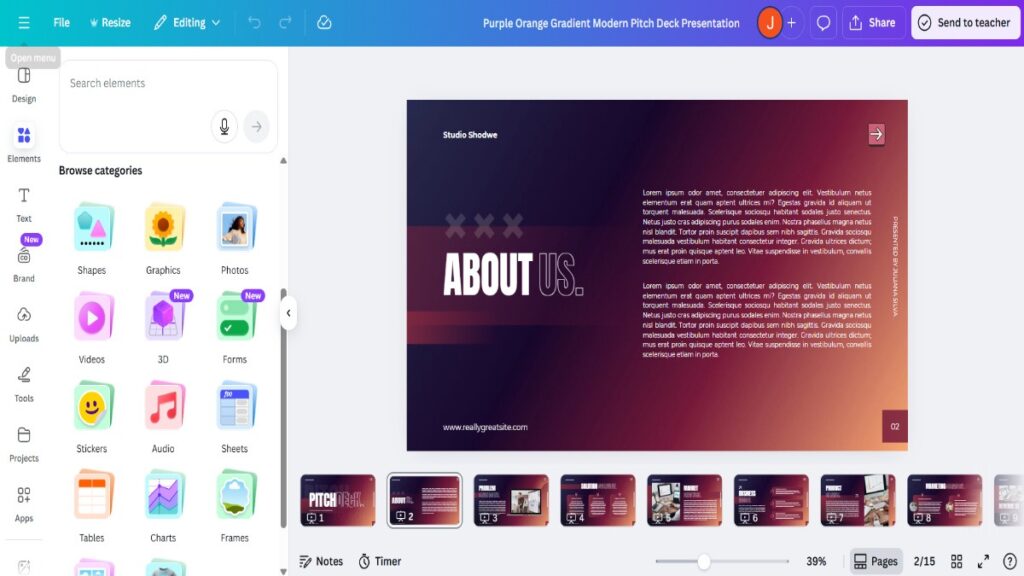
The editor interface is straightforward. The left sidebar contains your slides, templates, and uploads. The central canvas is your workspace to customize slides by dragging in text, images, icons, and other elements. On the top, you’ll find design tools like font selection, color pickers, and animation settings. Basic navigation involves adding new slides, duplicating existing ones, and rearranging them to structure your presentation flow.
When setting up your presentation, you can choose from standard formats like 16:9 widescreen or 4:3, or define custom dimensions if needed. This flexibility is perfect for tailoring your slides to specific display screens or print purposes.
Difference Between Canva and PowerPoint
Key differences between Canva and traditional PowerPoint include Canva’s emphasis on design simplicity and collaboration. While PowerPoint excels at detailed custom animations and data-heavy slides, Canva focuses on aesthetic appeal and rapid creation with seamless collaboration features built into its platform. This makes Canva especially attractive for users who want professional slides without spending hours perfecting layouts or mastering complex features.
Canva PPT Maker is ideal for a wide range of users: professionals who need polished business presentations, educators creating engaging lesson materials, marketers developing pitches, and anyone looking to design presentations that stand out visually without requiring expert graphic design skills. Regarding pricing, Canva offers tiered plans to suit different needs. The Free plan provides many essential tools and access to thousands of templates and elements, making it excellent for casual or occasional users.
The Pro plan unlocks premium templates, brand kit features (like custom logos, colors, and fonts), advanced animations, and collaboration tools, ideal for professionals and teams. There’s also an Enterprise tier for organizations needing extensive brand controls and advanced workflows. Accessibility is a major advantage as Canva PPT Maker is browser-based and available on desktop, iOS, and Android apps, ensuring users can work on presentations anytime, anywhere.
Canva PPT Maker vs Traditional PowerPoint
| Feature | Canva PPT Maker | Traditional PowerPoint |
| Accessibility | Browser-based, desktop, mobile apps | Desktop application, some online version |
| Collaboration | Real-time multi-user editing | Collaboration through file sharing |
| Templates | Extensive, industry-specific library | Large variety, more technical |
| Animation | Basic to advanced animations | More complex animation and triggers |
| Pricing | Free tier, Pro, Enterprise options | Paid software with licensing |
| Export Options | PPTX, PDF, video, shareable links | PPTX, PDF, video |
| Ease of Use | User-friendly, intuitive | Feature-rich, with a steeper learning curve |
Canva is ideal for quick, visually appealing presentations with easy collaboration, while PowerPoint suits detailed, data-intensive slides and offline use.
Essential Canva PPT Maker Features for Professional Slides
Here are the essential Canva PPT Maker Features for Professional Slides:
- Template Library and Customization: Canva PPT Maker boasts a vast library of professional presentation templates. These templates can be filtered by industry, style, and purpose, helping you find designs suited for business meetings, educational lectures, marketing pitches, and more. Customizing templates is simple: adjust colors, fonts, and layouts to align with your brand identity. Alternatively, you can start from scratch if you prefer complete design freedom.
- Design Elements and Graphics: Canva offers an extensive collection of design elements, including icons, illustrations, shapes, photos, and videos. Many of these assets are free, while the Pro plan grants access to premium elements for enhanced visuals. Incorporating these into your slides helps convey ideas visually and keep your audience engaged.
- Text and Typography Tools: Typography is essential to professional slides. Canva PPT Maker includes tools for font pairing to ensure cohesive, polished text. You can establish text hierarchy using different font sizes and weights, and animate text to add subtle movement. Consistent heading styles maintain a clean, readable slide deck.
- Brand Kit Integration: With the Pro plan, you can set up your Brand Kit by uploading custom fonts, defining brand colors, and saving logo variations. This integration lets you create brand-consistent presentations quickly by applying your signature styles automatically or using saved brand templates.
Tips for Using Canva PPT Maker Effectively
Using Canva PPT Maker becomes significantly easier and more efficient when you master a few essential tips. One of the biggest time-savers is mastering keyboard shortcuts. These shortcuts allow you to perform common tasks like duplicating elements, undoing mistakes, adding text boxes, and aligning objects without breaking your workflow to hunt for buttons. For example, using Cmd/Ctrl + D quickly duplicates selected slides or elements, while Cmd/Ctrl + Z undoes recent changes instantly, keeping your design flow smooth.
Canva’s grids and rulers help you align elements perfectly and maintain consistent spacing across your slides. This small detail significantly improves the professionalism and visual balance of your presentation.Duplicating slides that share a similar layout or structure is another huge time saver. Instead of recreating each slide from scratch, you can copy and tweak existing ones, which maintains consistency and speeds up the slide creation process.
Creating reusable templates is also a great practice. If you often create presentations within the same brand or style, saving a template saves time and keeps your designs on brand every time. You can customize and reuse these templates across different projects.
Organizing your presentations into folders keeps your Canva workspace tidy and easy to navigate, which is essential when handling multiple projects or team collaborations.
Don’t forget the power of Canva’s mobile app. It enables you to design, edit, or even present your slides on the go, providing flexibility when you’re away from your desktop.
Finally, adopting time-saving workflows like grouping elements to move them together, locking layers in place to avoid accidental edits, and dragging-and-dropping files boosts your overall productivity and makes slide creation less tedious. Applying these tips ensures you get the most out of Canva PPT Maker’s features and create professional presentations efficiently.
Advanced Features in Canva PPT Maker
Animation and Transition Effects: Enhance your presentations with slide transitions and animations for individual elements. You can control timing and durations to ensure smooth, professional motion effects. Best practices include using subtle animations to avoid distracting viewers while emphasizing key points
- Collaboration Tools: Canva excels in real-time collaboration. You can share presentations easily with team members who can edit simultaneously. The commenting and feedback system supports efficient communication. Version history lets you recover earlier versions if needed.
- Data Visualization: Creating engaging charts and graphs is a straightforward process. Canva allows you to import data from spreadsheets and customize visualization styles. Animated data visuals turn complex information into clear, dynamic stories, enhancing audience understanding.
Step-by-Step Guide: Creating Your First Professional Presentation
Creating Your First Professional Presentation is not so hard with the right guidance; you can create a way better presentation:
- Planning Your Presentation Structure: Begin by defining your objective and audience. Outline key points and organize the flow logically. Planning early ensures a focused, effective presentation.
- Selecting and Customizing a Template: Choose an appropriate template that fits your presentation’s tone and purpose. Adjust brand colors, fonts, and layouts to maintain consistency.
- Adding Content to Slides: Create impactful title slides, use clear content slide layouts, and design memorable closing slides that reinforce your message.
- Enhancing with Visual Elements: Strategically place images and use white space effectively to avoid clutter. Maintain visual consistency across slides.
- Adding Final Touches: Proofread content, test animations and transitions, and optimize your presentation for the delivery method, whether in-person or online.
- Design Best Practices for Professional Slides: Apply the 6×6 rule by limiting text to six bullet points with six words each. Use color psychology and contrast to highlight information. Keep alignment and spacing consistent for readability. Choose font sizes that are easy to read, even from a distance. Avoid common mistakes like overcrowded slides or low-quality images. Create a visual hierarchy that guides the audience’s attention and maintains brand consistency throughout.
- Export and Sharing Options: Canva PPT Maker offers multiple export options: download presentations as PDFs, export as PowerPoint files (PPTX), share via links, or present directly from Canva’s interface. You can embed presentations on websites or export video presentations. Print-ready formats are also available for physical handouts.
With Canva PPT Maker, you can easily craft, customize, and share captivating presentations that engage your audience and bring your ideas to life.
Common Challenges and Solutions
While Canva PPT Maker is user-friendly, certain challenges may arise that can disrupt your workflow. One common issue users face is during export. If a presentation fails to export or downloads incorrectly, check your internet connection first, as Canva relies on cloud access. Also, ensure you are using the correct file formats, such as PDF for print-ready versions or PPTX if you need to present offline with PowerPoint.Large file sizes can be another hurdle, often caused by high-resolution images or embedded videos. To manage this, compress images before uploading or limit video length and quality to keep files lightweight and easy to share or download.
Font compatibility problems sometimes happen when using custom fonts not supported across different devices or when those fonts aren’t embedded properly. To avoid this, either stick to standard fonts provided by Canva or make sure custom fonts are uploaded and saved correctly in your Brand Kit. Collaboration conflicts can occur if team members make simultaneous changes without coordination. Use Canva’s version history to track changes and communicate clearly with collaborators to prevent overwriting each other’s work.
For working offline, remember that Canva requires internet access to edit presentations. If you anticipate being without the internet, download your presentations in advance in PPTX or PDF format to continue working or presenting smoothly. Knowing these common challenges and their solutions helps maintain an uninterrupted, efficient experience while using Canva PPT Maker.
Conclusion
Canva PPT Maker makes creating professional slides simple and accessible for everyone. Its vast template library, powerful yet intuitive tools, and collaborative features provide everything needed to build stunning presentations quickly.
Whether you’re a business professional, educator, or creative, Canva PPT Maker helps bring your ideas to life with ease and polish. Get started today to experience how it can transform your presentation-making process. Try Canva PPT Maker now and make your next presentation truly stand out!

Leave a Reply